On this page
Check whether the PDF contains text
Try selecting a sentence or searching for a word you can see. An image-only scan has no usable text layer, so ordinary text extraction cannot recover its words. The sample scanned report looks like the native report but stores the pages as pictures.
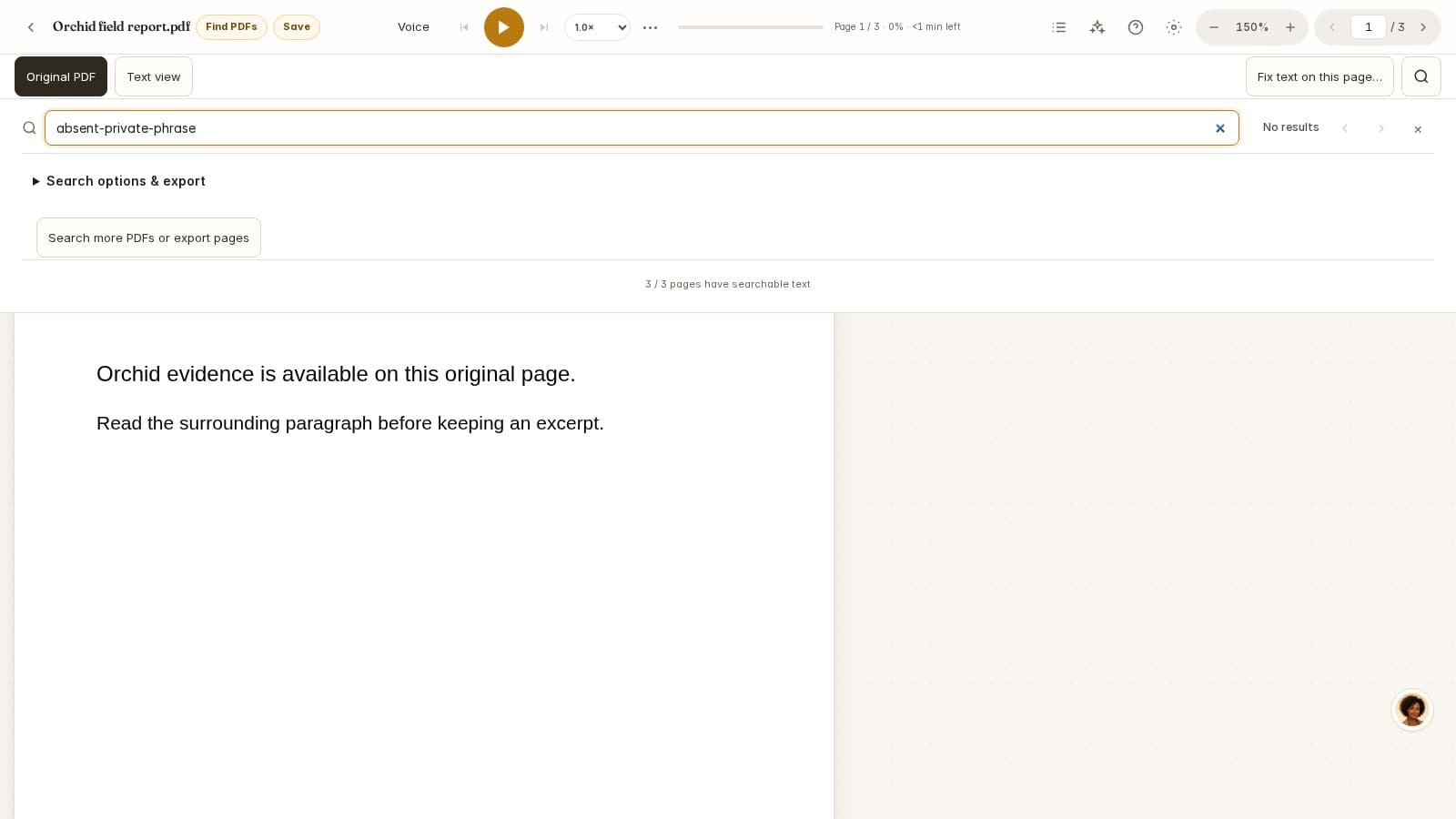
Download both versions and the reference text. Search for Orchid in each before recognition. The native version provides a useful control when you want to distinguish a search problem from a missing text layer.
Recognize the pages you need
Open OCR PDF, choose the scanned sample and select the relevant pages. Choose English for this sample. On the first run the browser downloads the recognition model; then the selected pages are processed on your device.
Start with a short page range when working with a long or difficult document. Watch the coverage state so that you know which pages have completed and which still need recognition. A partially recognized document is not a fully checked document.
Compare OCR with the original
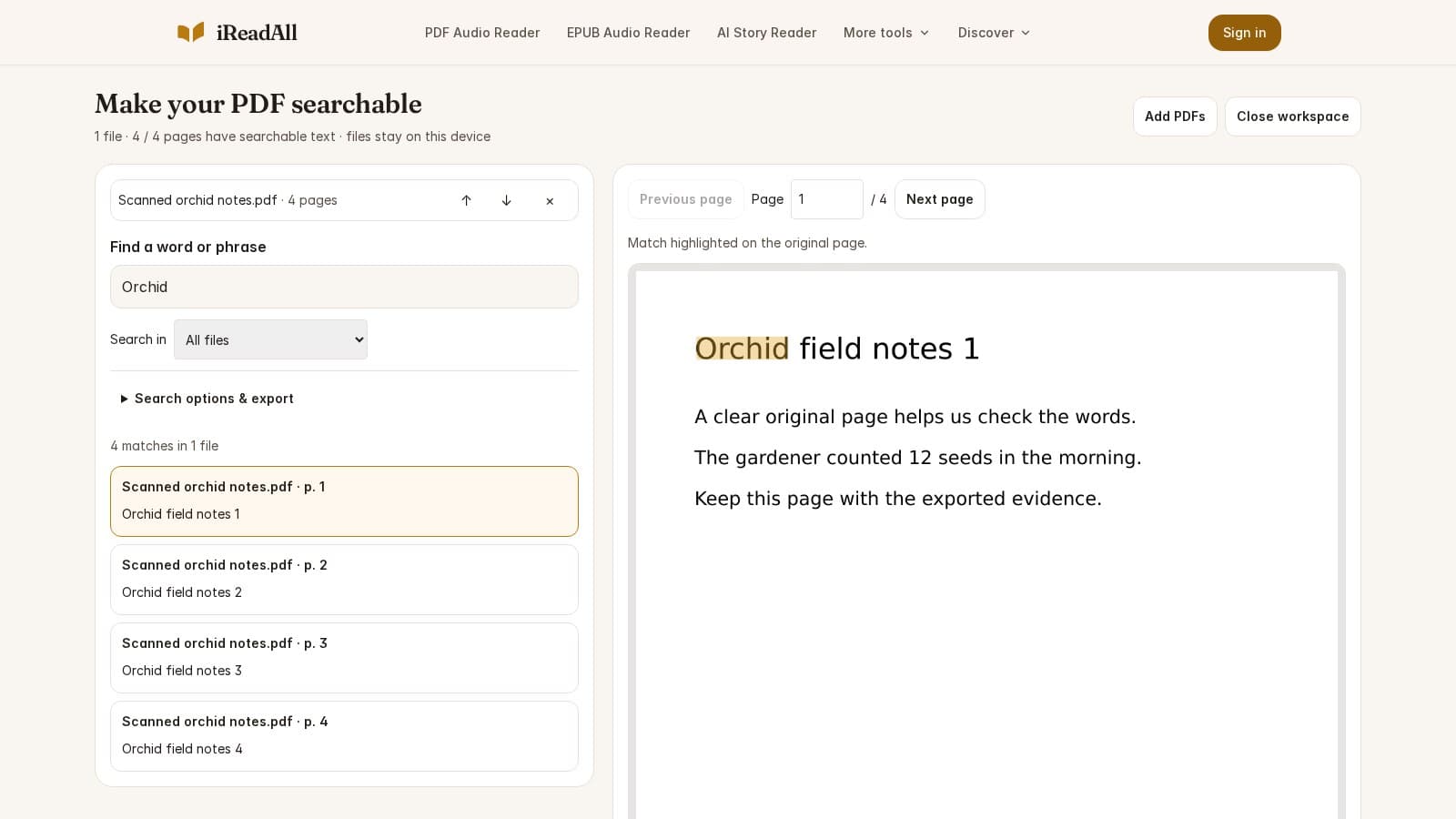
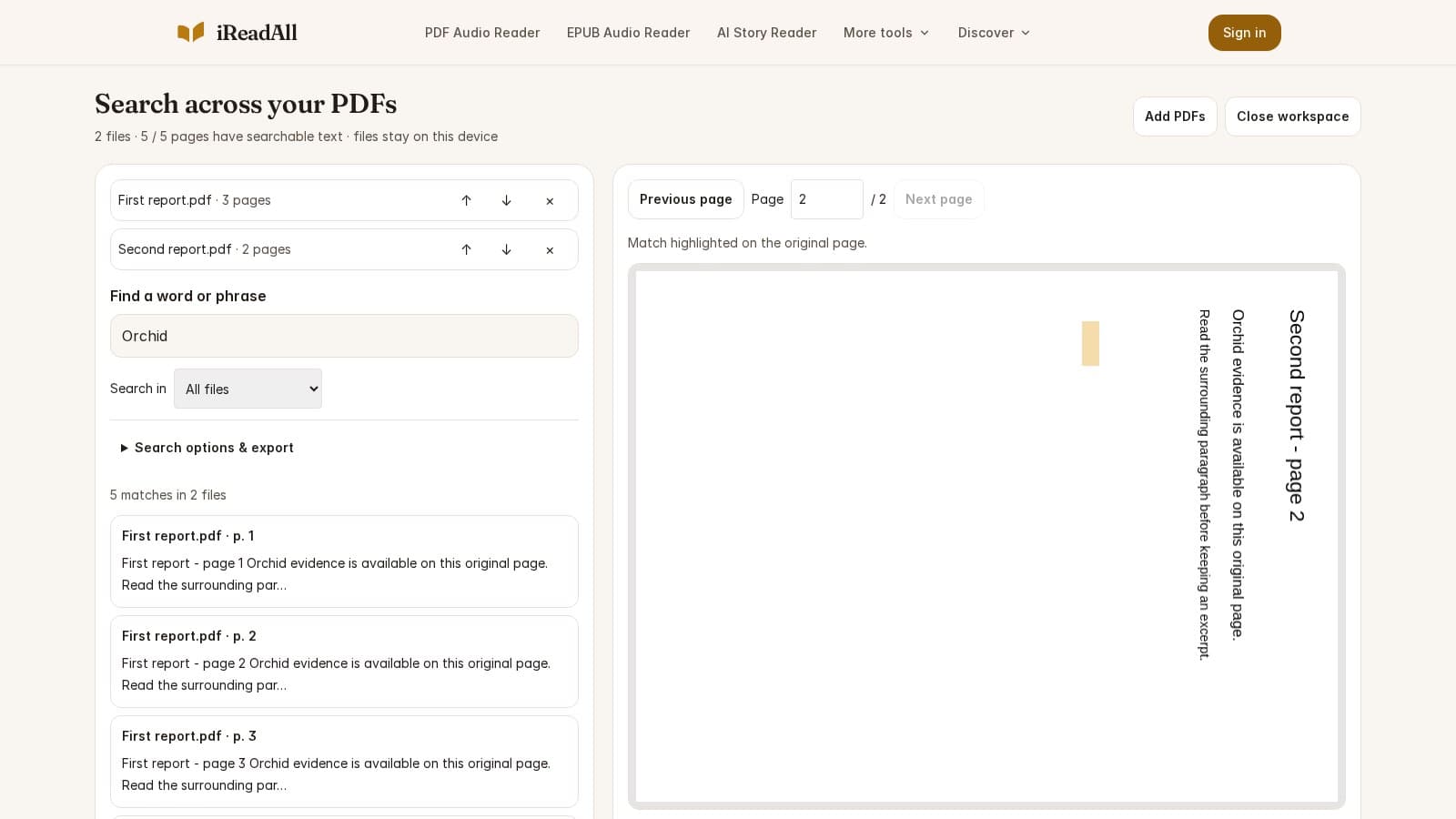
Search for Orchid after recognition and inspect its position on the original page. Compare the sentence around it with the reference. Check numeric values separately: a plausible-looking digit can still be wrong.
Blurred scans, columns, skew and small print can create missing words or incorrect order. Try a clearer source or a better crop when recognition fails. If the source itself is unreadable, OCR cannot reliably reconstruct what is missing.
Export searchable PDF, TXT or Markdown
Export a searchable PDF if you want the original page appearance with an added text layer. For notes or a writing tool, continue to PDF to Text and choose TXT or Markdown. Select the desired file pages and inspect the output's source-page headings.
When some pages have no text, the extraction workflow identifies the missing pages. A completely empty selection is rejected. Do not treat a file containing only headings as a successful text recovery.
Every requested file page completed recognition.
Orchid, 12, 24, 36 and total 72 agree with the source and reference text.
Keep the source with your notes
Plain text and Markdown do not preserve the PDF's original layout. Tables, formulas and columns may need further review; online structured extraction is a separate option when recovering structure is worth the additional checking.
Keep the original file together with the exported notes. Before quoting a passage, confirm its exact wording and physical page location against the source. Recognition is an aid to reading, not a substitute for verification.
Practice with the sample files
These fictional demonstration documents were created by iReadAll for this workflow. They contain no customer data. Start with a copy, perform the steps above and inspect the actual output.
Check the result
- Image-only input has no selectable text before OCR
- Orchid is found on the expected page after recognition
- Names and numeric values compared with the reference
- TXT/Markdown contains body text, with missing pages clearly identified
Local tools keep document content on your device. Online tools require an account and an estimate before processing. See data handling and PDF processing allowances.
Continue with the submission checklist, the PDF research workflow, or browse all PDF tools.
Samples & worksheets
Original fictional demonstration material for the workflow and result checklist.
Original fictional demonstration material for the workflow and result checklist.
Original fictional demonstration material for the workflow and result checklist.
How this guide was researched
The workflow was checked against iReadAll's current tool controls, processing limits and data-handling rules. Downloads are original fictional documents with an explicit result checklist; diagrams are explanatory illustrations. They are not a comparative accuracy or speed benchmark.
Evidence checked Nov 17, 2026. Product features can change; dated observations describe the version examined.
Published by iReadAll. AI tools assist research and editing; the team is responsible for verification. Read our editorial policy.
Sources & references
- iReadAll OCR PDF: supported inputs and processing limitsiReadAll · Checked 2026-11-17
- iReadAll PDF data handling and retentioniReadAll · Checked 2026-11-17
- iReadAll PDF processing allowancesiReadAll · Checked 2026-11-17
Cite this guide
iReadAll Product & Editorial Team. “How to Extract Text from a Scanned PDF.” iReadAll, Nov 17, 2026. https://ireadall.ai/blog/extract-text-from-scanned-pdf