On this page
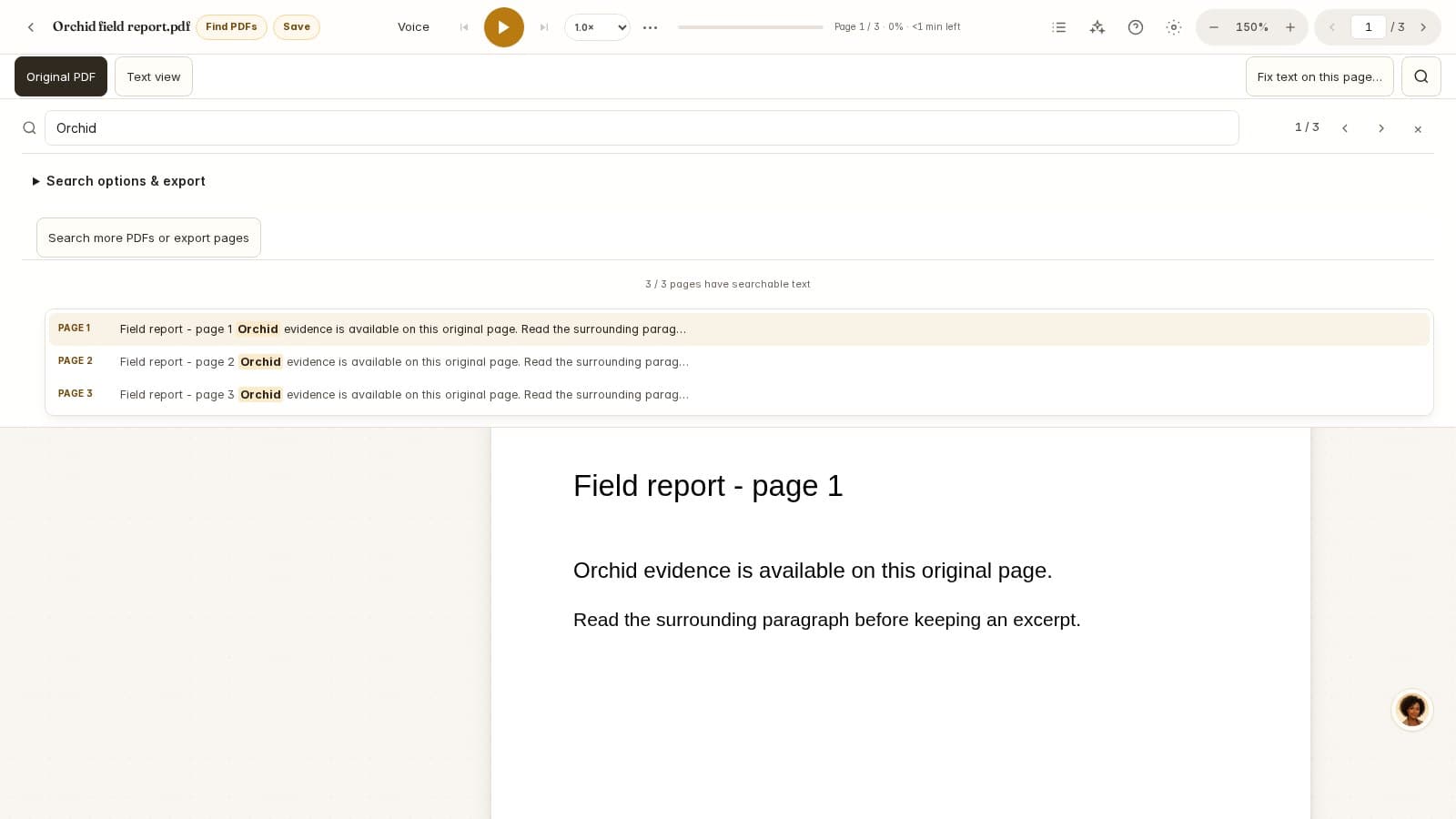
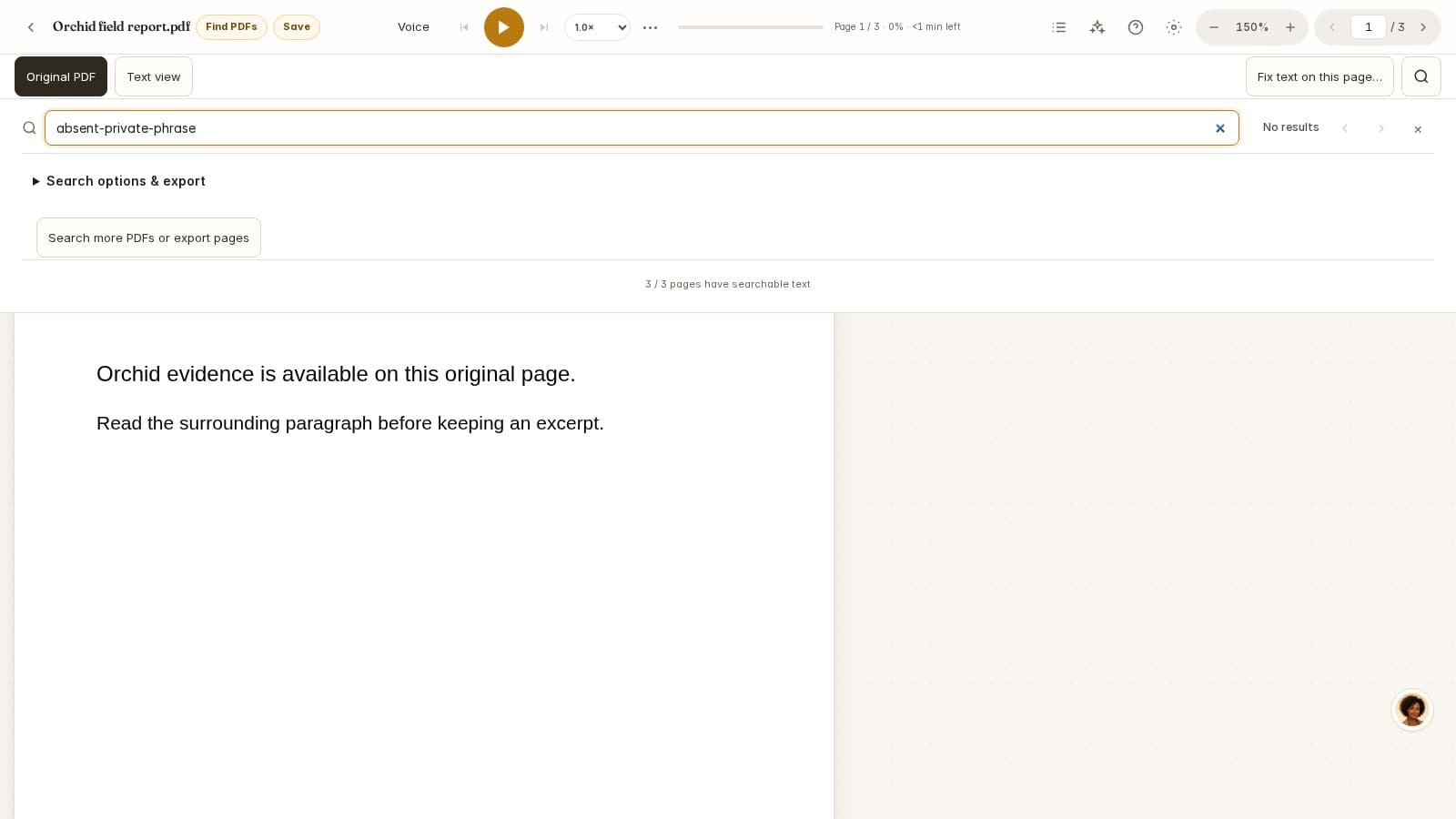
A word can be clearly visible in a PDF and still produce no search result. Search normally checks an extracted text layer, not the pixels you see. Before converting the whole document, test one visible word on one known page. That keeps the diagnosis small enough to check.
A two-minute diagnostic
Swipe horizontally to compare all columns →
| Observation | Likely explanation | Next action |
|---|---|---|
| Search finds words on the surrounding website | The browser is searching the page around the PDF | Activate the PDF viewer's own search box. |
| A common word appears only outside the chosen range | A page or document filter excludes it | Clear filters and try again. |
| No visible sentence can be copied | The page may be image-only | Recognize that page with OCR. |
| Copied words contain strange characters | The text layer is damaged or recognition is inaccurate | Compare a recovered copy against the image. |
| Some pages work and others do not | Mixed text and image pages, or incomplete indexing | Check page coverage and recognize only missing pages. |
| Individual words match but the phrase does not | Line breaks, punctuation, order or page boundaries differ | Search a distinctive fragment and inspect its context. |
Copy a sentence and inspect what actually exists
Choose an ordinary sentence away from headers or complicated tables. Select it, paste into a plain-text editor and compare every word with the original. For example, a printed model number AB-101 might copy as AB-lOl. A search for the printed number cannot match those different characters.
Selection alone is not proof that the text is native or accurate. An old scan can already contain an invisible OCR layer. W3C's PDF7 technique explains how OCR supplies actual text for scanned images and includes checking and correcting recognition. The practical test is the text you can extract from this file.
- 01No text
The page may contain only an image. Try OCR on that page.
- 02Different characters
Compare the existing layer with the image. Recognition or font encoding may be wrong.
- 03Correct text
Clear filters and test a shorter query in the PDF viewer's own search box.
Try shorter phrases and clear restrictions
Remove case matching and whole-word matching temporarily. Search one distinctive word from the middle of the phrase. Then inspect nearby text for a line-end hyphen, a missing space, an unexpected punctuation mark or an interrupted column. A phrase across two pages also needs separate searches in iReadAll.
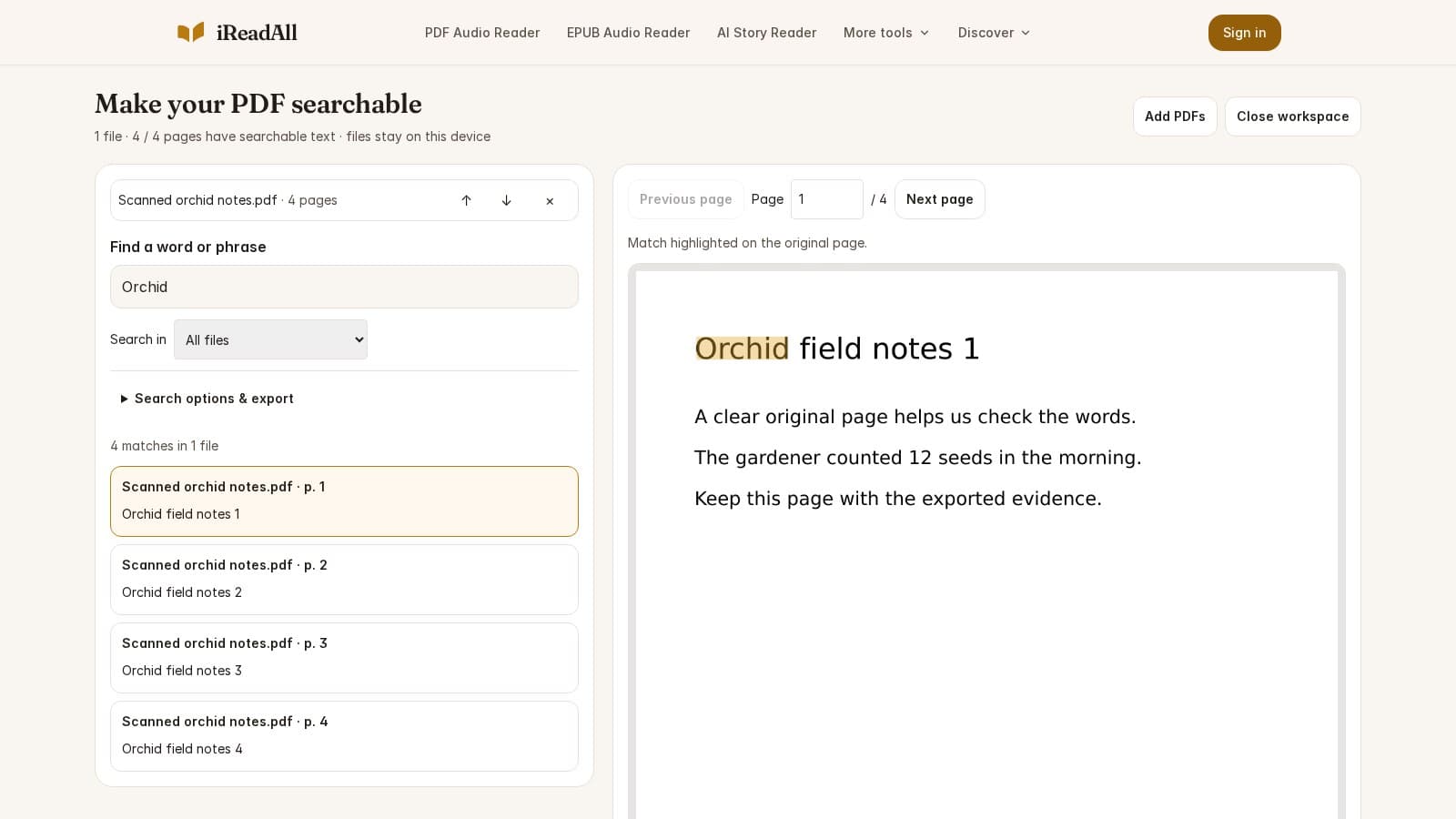
iReadAll normalizes common ligatures, repeated whitespace and discretionary line-end hyphens for matching while retaining source references. This helps with common extraction differences; it cannot infer every misspelling or restore a missing passage. If even a short fragment fails, return to the copy test.
Adobe's search documentation describes scope, case and whole-word controls. Check the equivalent settings in your viewer when a visible word is unexpectedly excluded.
Recognize a small scope first
In scanned PDF search, start with the page containing your known word. Choose an OCR language matching the document. Search the recovered result and check its highlight on the image before running the rest of the document.
If recognition is inaccurate, a clearer original may help more than repeating the same run. Tesseract's quality guide describes how skew, noise and image quality affect recognition. Inspect the source for those problems and obtain a better scan when possible.
Keep a reproducible example
If the problem persists, record the file page, visible word, pasted text, active filters and whether recognition has finished. Try the same page in a second viewer to help distinguish a viewer issue from a document issue. Use a non-sensitive sample when reporting the problem; a description of the mismatch is often enough to start.
For a long report, record which pages were actually checked. “No matches in recognized pages 10–20” is more precise than “the document does not mention it.” A completed OCR run still needs human verification for consequential quotations and values.
How this guide was researched
Evidence checked Nov 4, 2026. Product features can change; dated observations describe the version examined.
Published by iReadAll. AI tools assist research and editing; the team is responsible for verification. Read our editorial policy.
Sources & references
- Adobe: Searching in PDFsAdobe · Checked 2026-11-04
- W3C PDF7: Actual text in scanned PDFsW3C · Checked 2026-11-04
- Tesseract: Improving output qualityTesseract · Checked 2026-11-04
Cite this guide
iReadAll Product & Editorial Team. “PDF Search Not Working? Diagnose the Text Before Trying Again.” iReadAll, Nov 4, 2026. https://ireadall.ai/blog/pdf-search-not-working