On this page
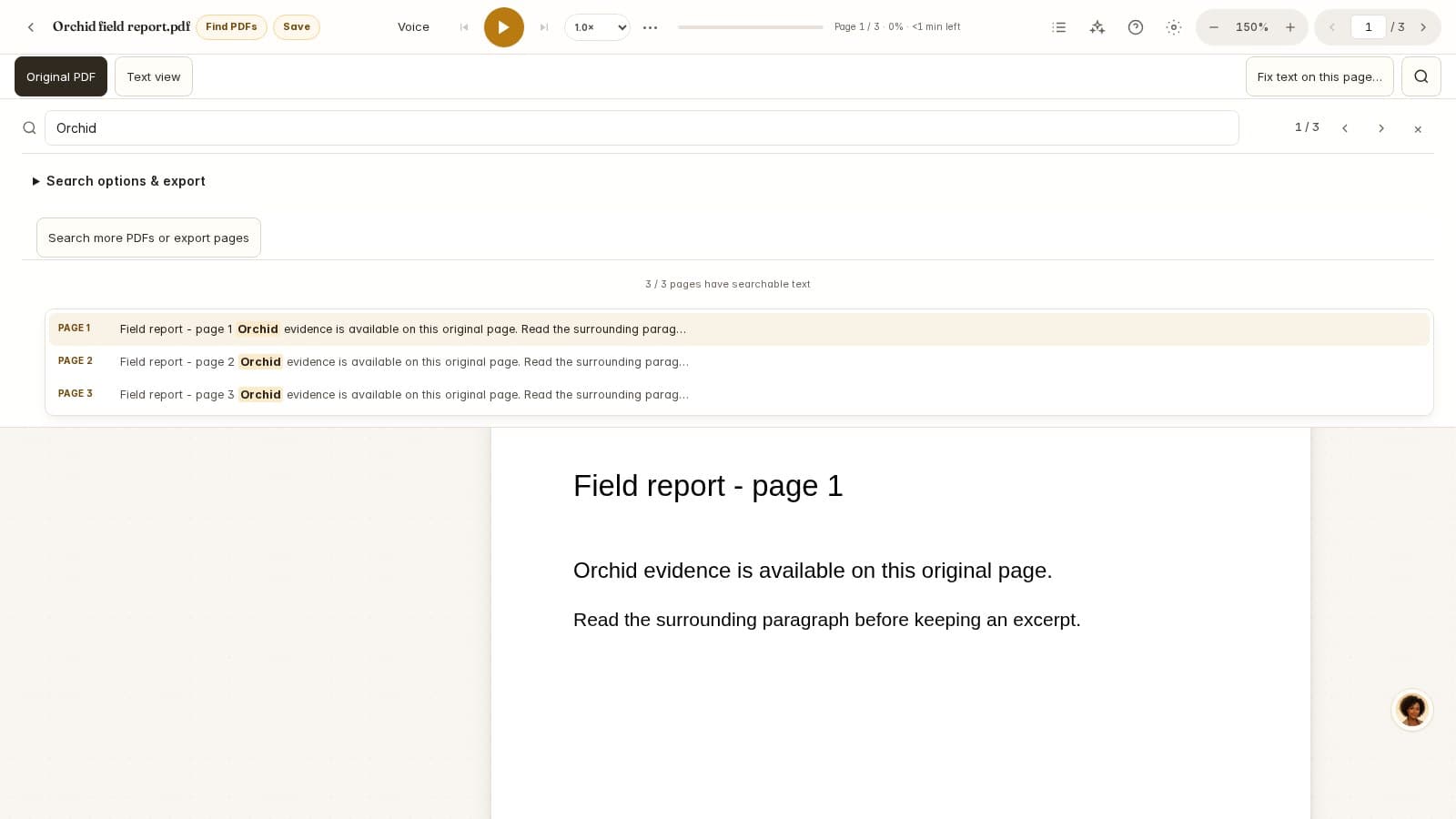
Open the PDF itself, activate its search box, and type a word you can see on the page. In many desktop viewers, Ctrl+F on Windows or Command+F on Mac opens Find. When a PDF is embedded inside another page, use the viewer's own search control so you search the document rather than the surrounding website.
Start with one distinctive word
Suppose you need a report's discussion of “thermal expansion.” Search expansion first. This gives you a quick way to see whether text is available and how many passages need inspection. Then search the full phrase if there are too many results. Avoid beginning with a long sentence copied from a photograph: one recognition error can prevent a literal match.
Open each relevant match and read the sentence before and after it. A table of contents, glossary entry and actual finding can all contain the same phrase. A hit tells you where characters occur; its context tells you whether it answers your question.
Narrow a long result list
Swipe horizontally to compare all columns →
| Example | Useful setting | Check before relying on it |
|---|---|---|
| Finding art without matching partial | Whole word | Punctuation and word boundaries can differ between languages. |
| Distinguishing US from us | Match case | OCR may have changed capitalization. |
| Looking in an appendix | File page range | The first appendix page may have a different printed page number. |
| Finding thermal expansion | Phrase search | Try each word if line breaks or OCR errors interrupt the phrase. |
Adobe's search guide documents Find and advanced search options, including case and whole-word matching. The controls available in a browser viewer may differ, so inspect the viewer's search menu before assuming it has the same options.
- 01Find a distinctive word
Start with expansion before searching a long sentence.
- 02Narrow the matches
Choose a phrase, a file page range or whole-word matching.
- 03Inspect the original
Read the surrounding passage and record the file page.
Search a local file in iReadAll
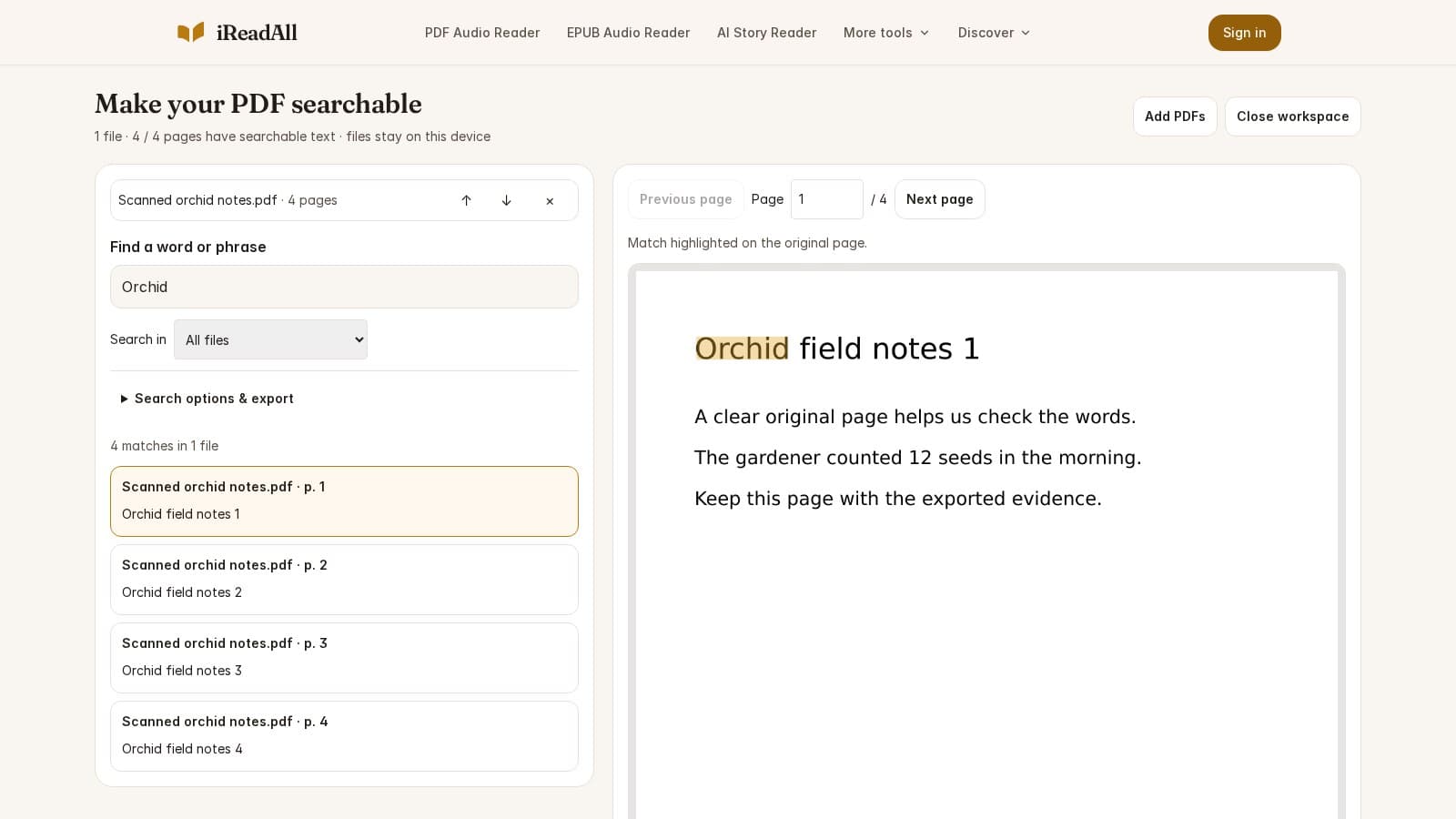
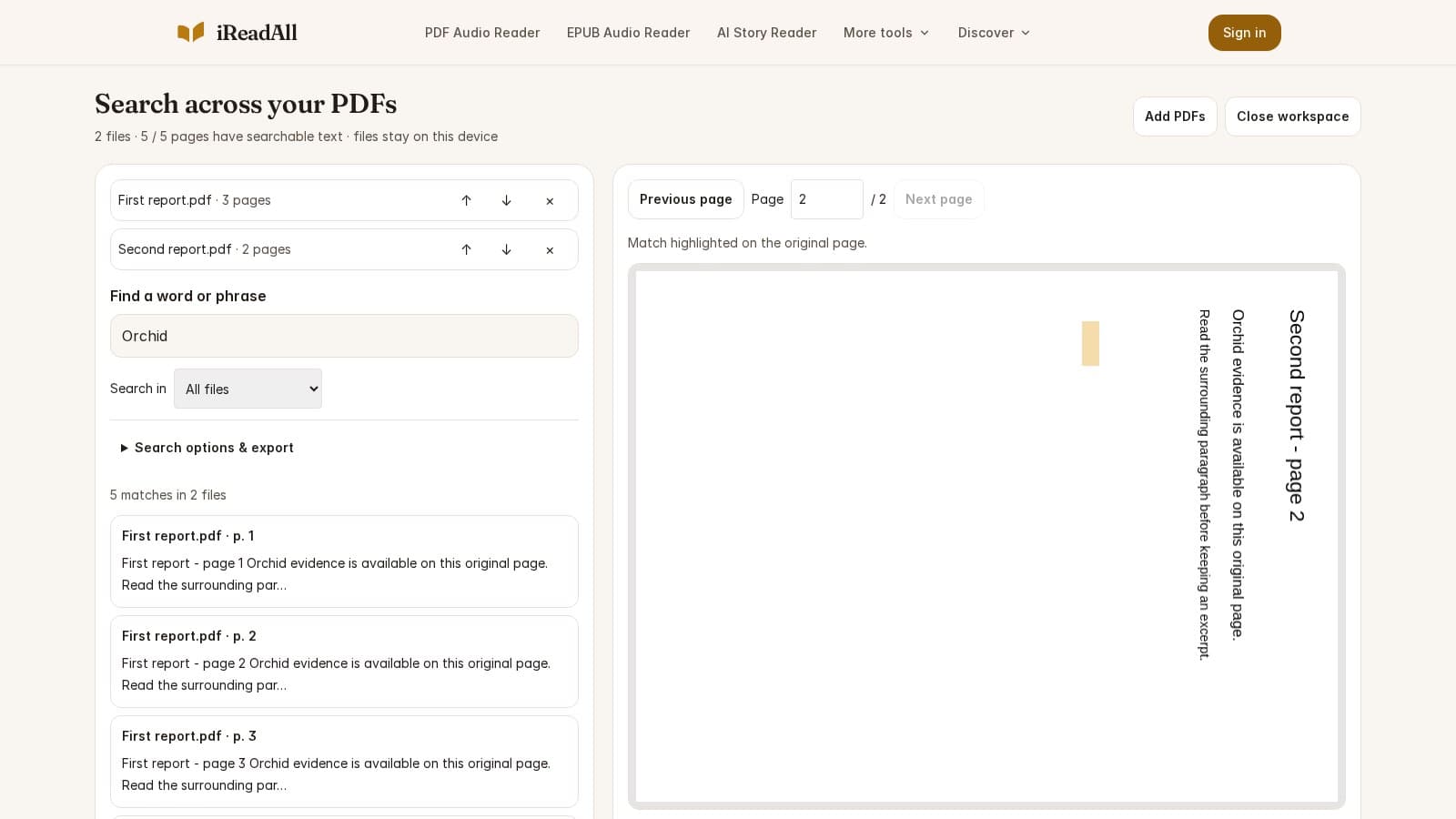
- Open PDF Search, choose your file, and enter a word or phrase. No account is required for local search.
- Open a result to inspect the highlighted source. Use the next and previous controls to move through occurrences.
- Expand search options to match case, match whole words or restrict file pages.
- Download CSV or Markdown when you need a list of passages and page references. Keep the original file with the export so the references remain useful.
The reader's coverage indicator separates available text from pages still being checked or needing recognition. A long file can produce useful results before every page is ready. Treat an early export as a collection from the available text, and wait for the remaining pages when completeness matters.
Record a reference you can find again
Use the document name, the file page number and a short distinctive excerpt. A report with a cover, contents and Roman-numbered introduction might print “1” on the seventh file page. Record both numbers when sharing a reference: “file page 7, printed page 1” avoids an unnecessary search later.
Search exports preserve the available passage and file page. They do not establish that a quotation is accurate, complete or relevant. Compare the excerpt with the source before quoting it elsewhere, particularly when OCR supplied the words.
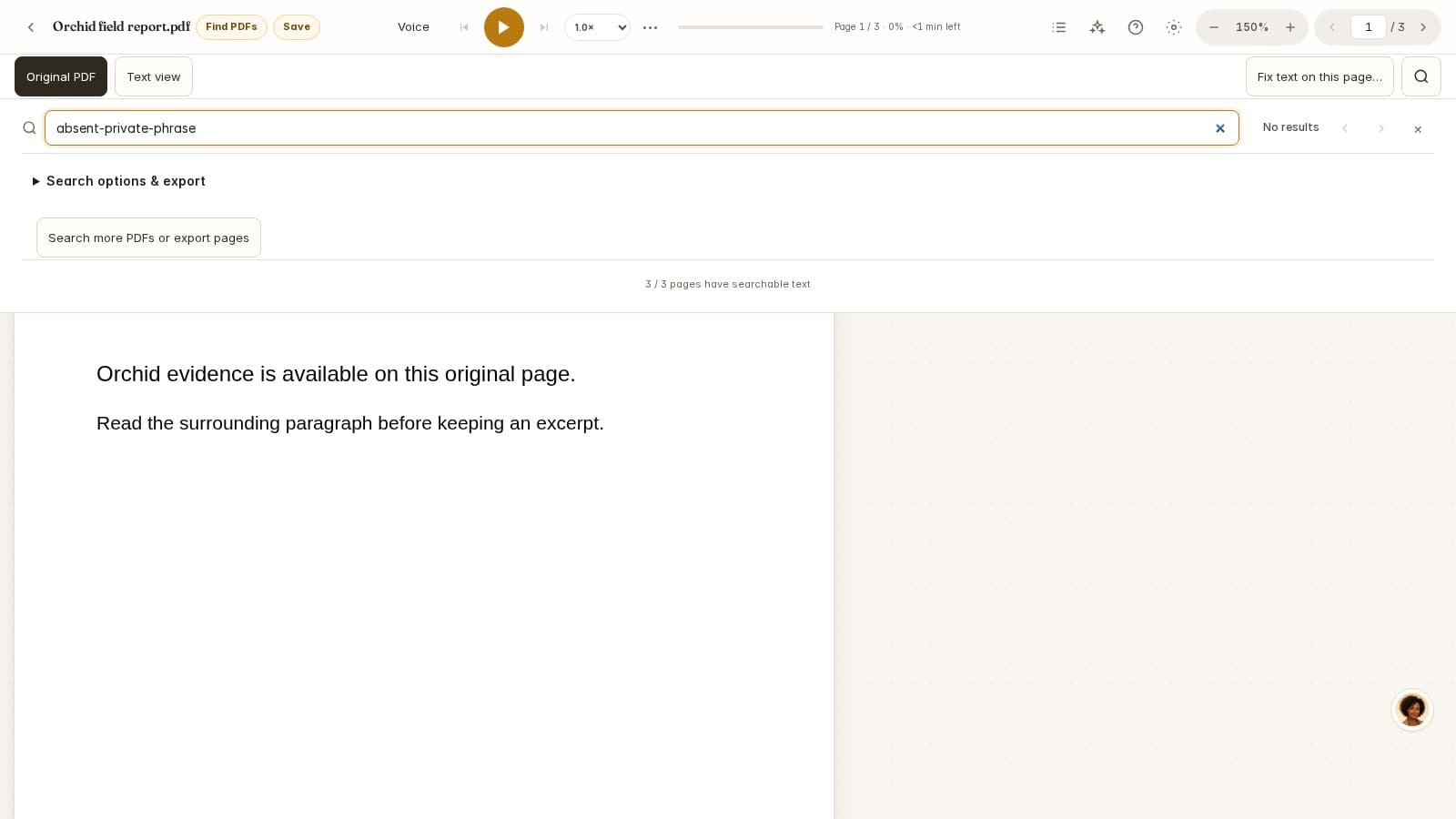
When the result is empty
Try a shorter word, clear the filters and copy a visible sentence into a text editor. If nothing useful copies, the page may contain only an image or an unusable text layer. Follow the PDF search diagnostic or recognize the scanned pages. If the phrase spans two pages, search each side separately.
For image-only pages, W3C explains the role of OCR. When the recovered words are inaccurate, consult Tesseract's scan-quality guidance before repeating a full-document run.
How this guide was researched
Evidence checked Nov 4, 2026. Product features can change; dated observations describe the version examined.
Published by iReadAll. AI tools assist research and editing; the team is responsible for verification. Read our editorial policy.
Sources & references
- Adobe: Searching in PDFsAdobe · Checked 2026-11-04
- W3C PDF7: Actual text in scanned PDFsW3C · Checked 2026-11-04
- Tesseract: Improving output qualityTesseract · Checked 2026-11-04
Cite this guide
iReadAll Product & Editorial Team. “How to Search a PDF for a Word or Phrase.” iReadAll, Nov 4, 2026. https://ireadall.ai/blog/how-to-search-a-pdf