On this page
Searching a collection works best when you can answer two questions about every result: which document contains it, and where on the page it appears. Start with a defined file set, run a word or phrase search, and keep source references with the passages you retain.
Choose a local collection workflow
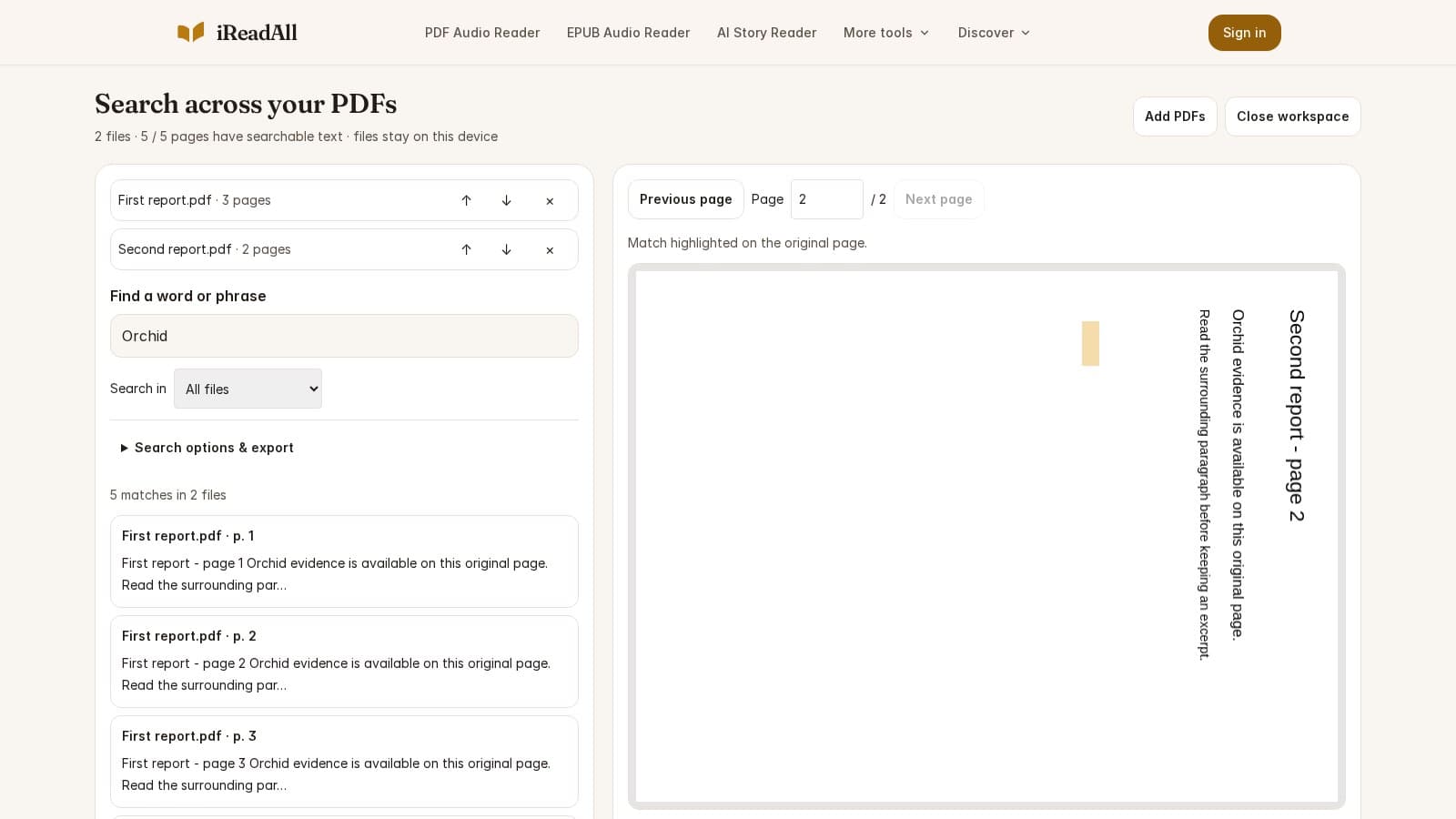
A desktop viewer may offer folder-based advanced search; Adobe documents searching multiple PDFs in its search interface. For a browser session, iReadAll's multiple-PDF workspace accepts up to 20 files, 100 MB per file and 200 MB combined. Choose the method that fits the collection you have.
Before opening the files, separate revisions of the same report. Otherwise a repeated paragraph can look like independent evidence. Use meaningful local filenames, such as a report title and year, so the exported references remain understandable later.
Work through a concrete question
Imagine comparing three equipment manuals for a maintenance interval. Search inspection across all three, then use the document filter to inspect each manual's results. A warning, a contents entry and an actual schedule can all match. Open the original page and read the interval together with its conditions and units.
Swipe horizontally to compare all columns →
| Keep | Example | Reason |
|---|---|---|
| Document and revision | Pump manual, revision C | Different editions may change the instruction. |
| File page | File page 42; printed page 38 | Another person can navigate to the same location. |
| Exact excerpt | The interval plus its qualifying sentence | A detached number loses its conditions. |
| Coverage note | Scanned appendix still unrecognized | The current collection may be incomplete. |
This is an illustrative workflow, not a result from those manuals. Apply the worksheet to the actual documents you are comparing and verify the relevant passages yourself.
- 01Document
Record the title and revision so repeated editions are not treated as independent evidence.
- 02Page
Keep the file page and, where useful, its printed page label.
- 03Passage
Include the qualifying sentence, then compare it with the original.
Use the browser workspace
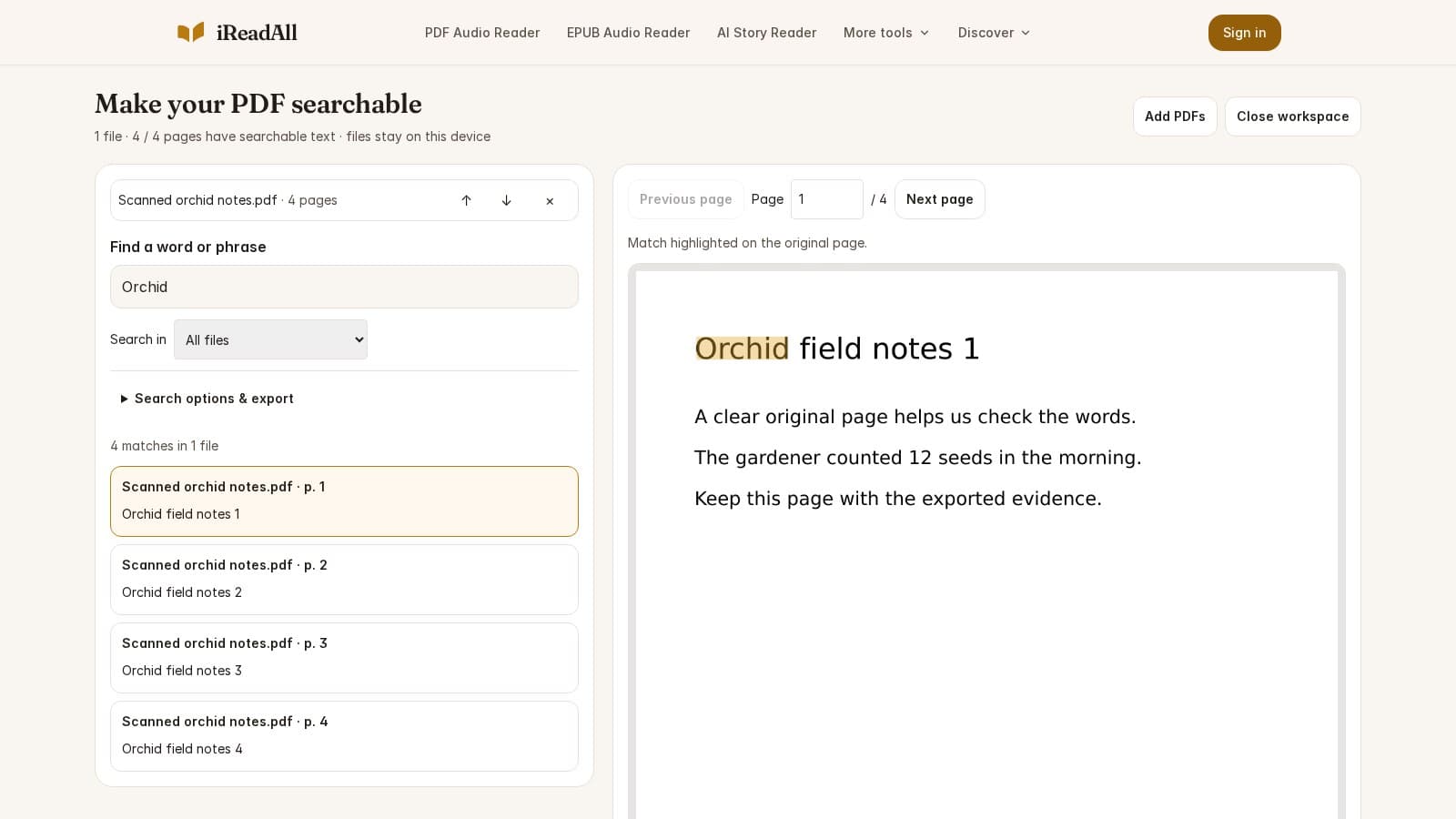
- Choose your PDFs and wait for useful text to appear. The page-coverage count updates as files are checked.
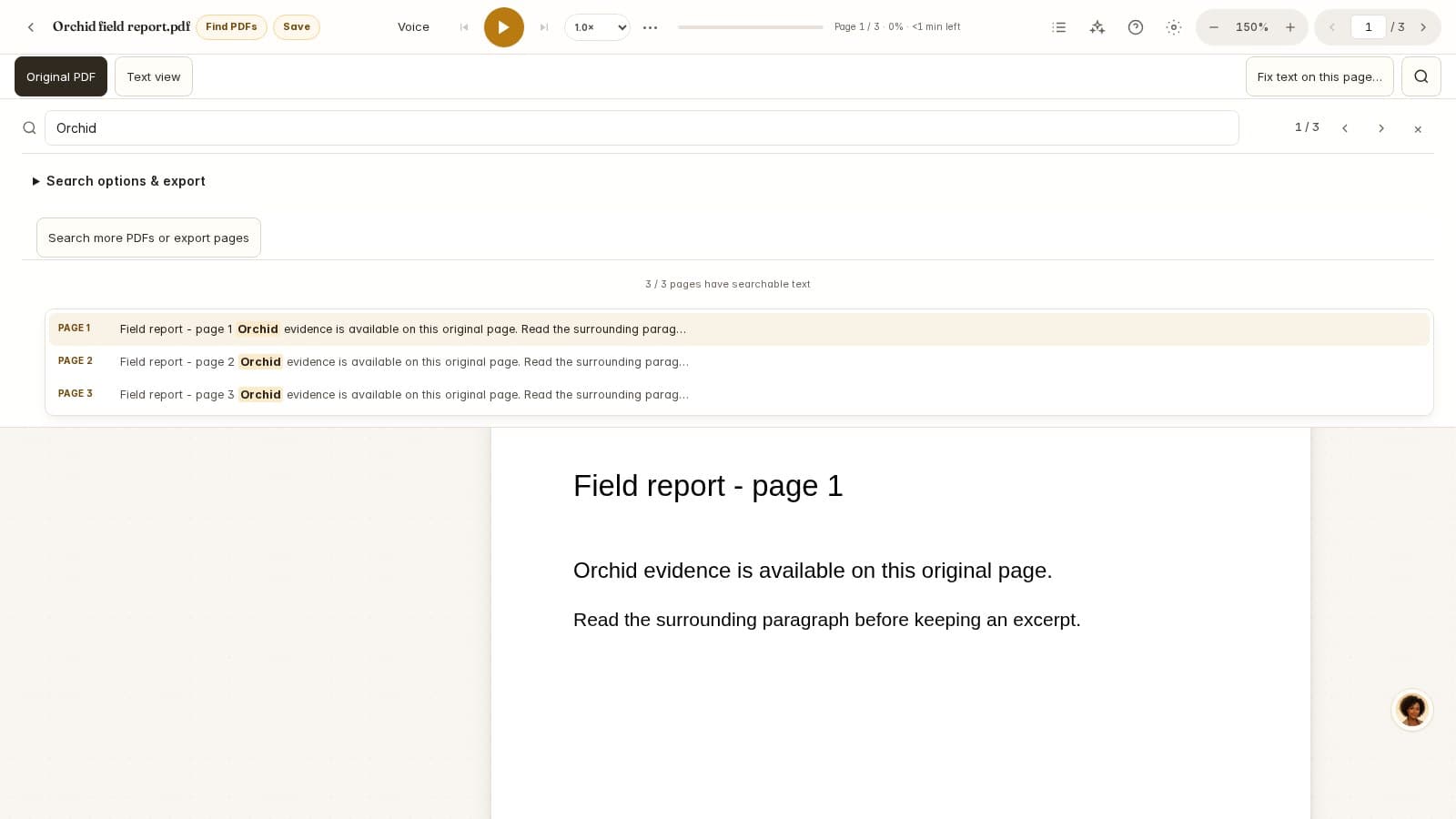
- Search a word or phrase. Narrow by document, case, whole word or file page range.
- Open a result to inspect its original page and highlight. Save this excerpt when it is useful.
- Download saved evidence as Markdown, or export the current matches as CSV or Markdown.
- Use Extract matching pages when you need a smaller PDF containing the available matching pages.
Saved excerpts belong to the current workspace session. Download them before closing the tab. Keep the original PDFs as well: an exported file name and page number are a reference, not an uploaded public link to the source.
Account for scanned and unfinished pages
A document with zero matches may still have pages waiting for recognition. Select that file, choose its missing page range and run on-device OCR. Completed pages become searchable as the run progresses. Compare names and numbers with the original because recognition errors can create both missing and misleading matches.
W3C's OCR technique explains the difference between page images and actual text. For inconsistent results across scans, use Tesseract's image-quality guidance to inspect skew and noise before processing the remaining files.
A page range applies to file pages within each searched document. It does not identify a shared chapter across different PDFs. When reports have different layouts, use the document filter before narrowing the page range.
Move from a match to understanding
Use Read, annotate or listen from this page to open the selected file in the full reader at that page. Read the surrounding section, add a note or listen using the existing reader controls. A literal match is an entry point into the evidence; it is not a conclusion about agreement between documents.
Local search, local OCR and local exports do not require an account. Online listening, AI and saving are separate actions with their existing availability and limits. Search query text and file contents are not included in search analytics.
How this guide was researched
Evidence checked Nov 4, 2026. Product features can change; dated observations describe the version examined.
Published by iReadAll. AI tools assist research and editing; the team is responsible for verification. Read our editorial policy.
Sources & references
- Adobe: Searching in PDFsAdobe · Checked 2026-11-04
- W3C PDF7: Actual text in scanned PDFsW3C · Checked 2026-11-04
- Tesseract: Improving output qualityTesseract · Checked 2026-11-04
Cite this guide
iReadAll Product & Editorial Team. “How to Search Multiple PDFs and Keep the Evidence.” iReadAll, Nov 4, 2026. https://ireadall.ai/blog/how-to-search-multiple-pdfs