
Technical docs and web research
Listen to readable documentation and HTML research articles while keeping code, charts and equations in view. Inspect those elements on the original page; not all visual or interactive content can be spoken.
Listen to articles and selected passages with the iReadAll text-to-speech Chrome extension. Open the reader, click a readable sentence to start there, and follow along with highlighting at your own pace. Free device voices need no account; optional AI voices depend on feature availability and your remaining allowance.
Free device voices · No account required · Chrome 116+ on a desktop computer
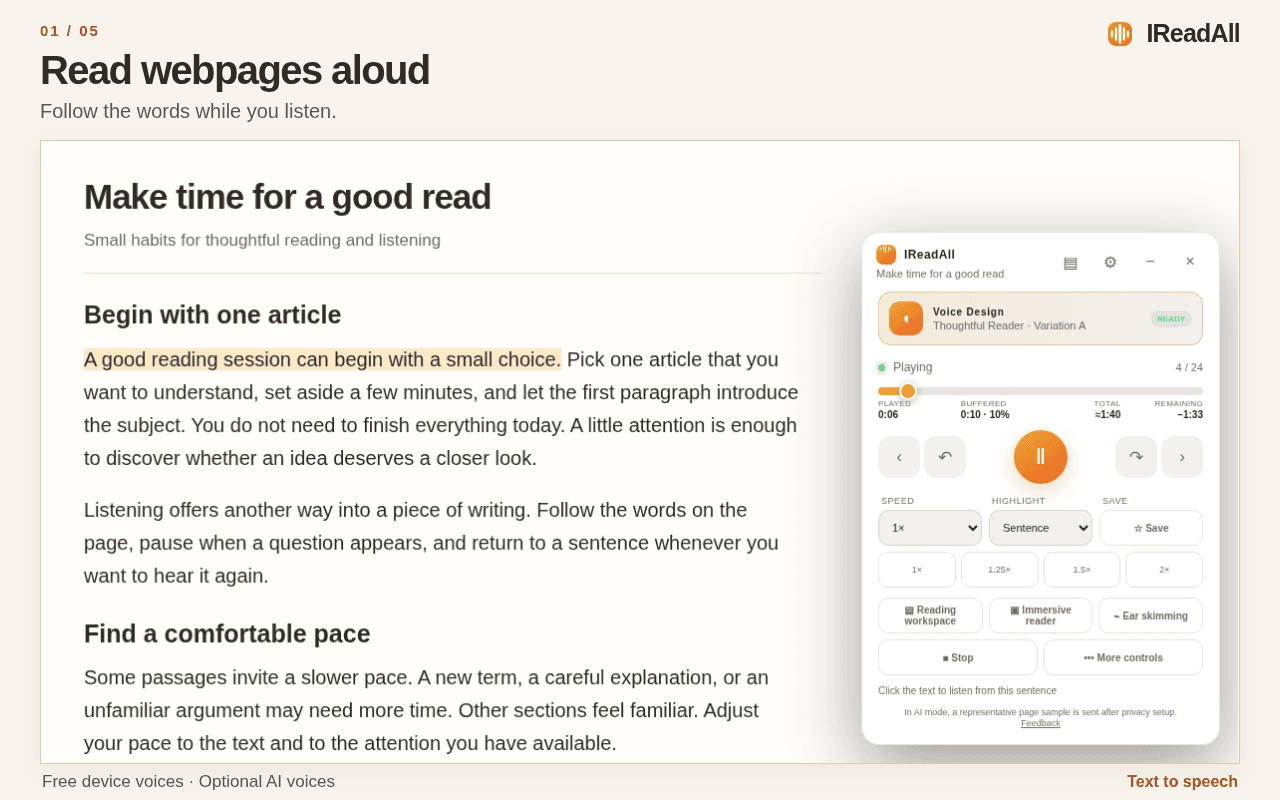
Read, listen, and keep your place
See sentence-by-sentence listening, voice choices, reading speed, and saved articles in the extension. Open the reader before clicking a sentence to start there.
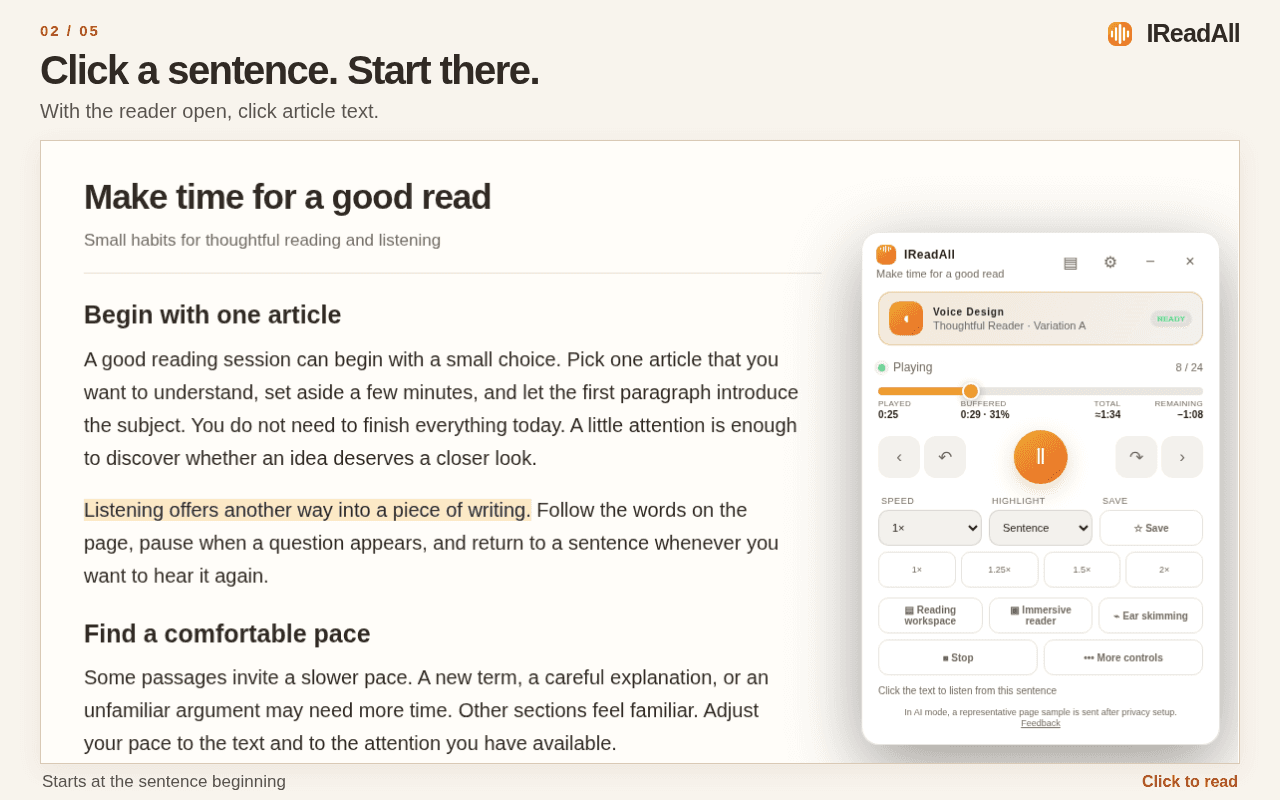
With the reader open, click a readable sentence in the article to listen from its beginning.
Click to start · Continue reading
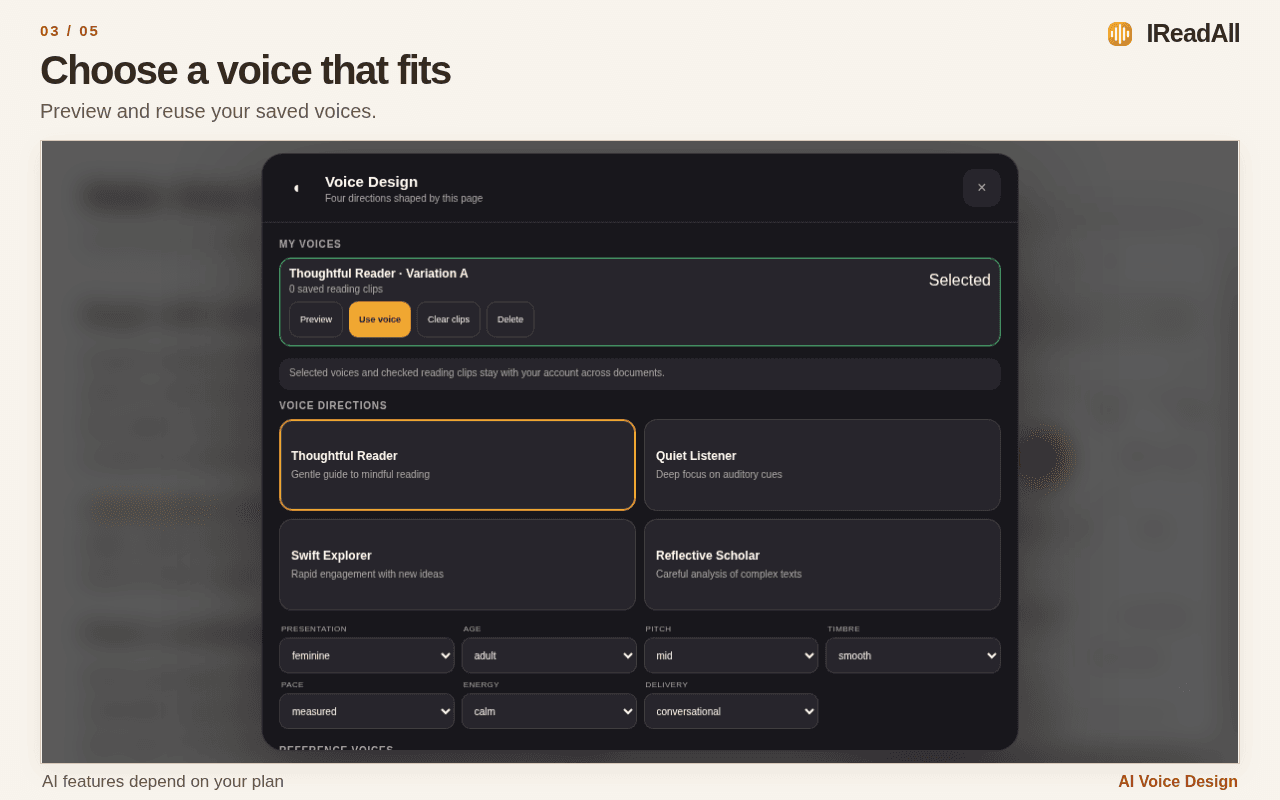
Preview four AI narrator directions and choose one for the article when AI Voice Design is available within your allowance.
Optional AI Voice Design · Preview first
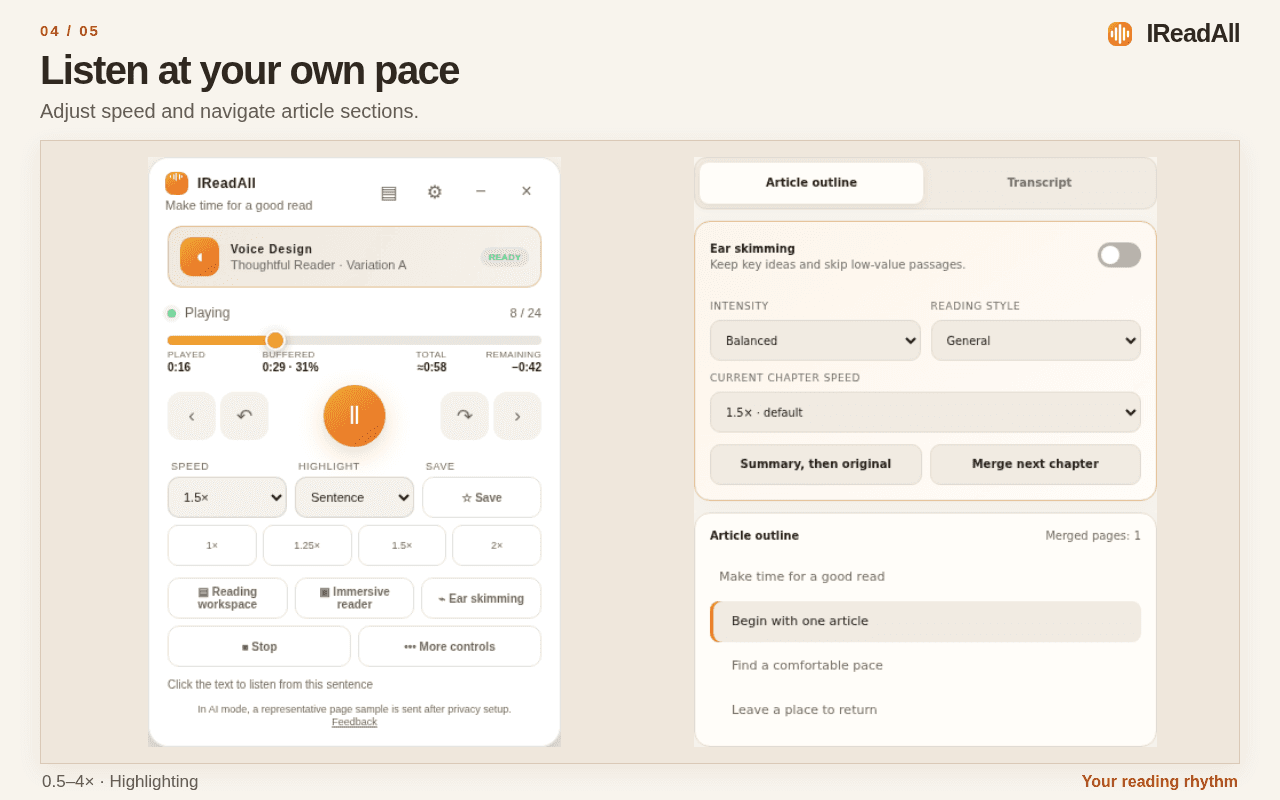
Adjust the reading speed and use the outline to find your place in a long article.
0.5–4× speed · Chapter navigation
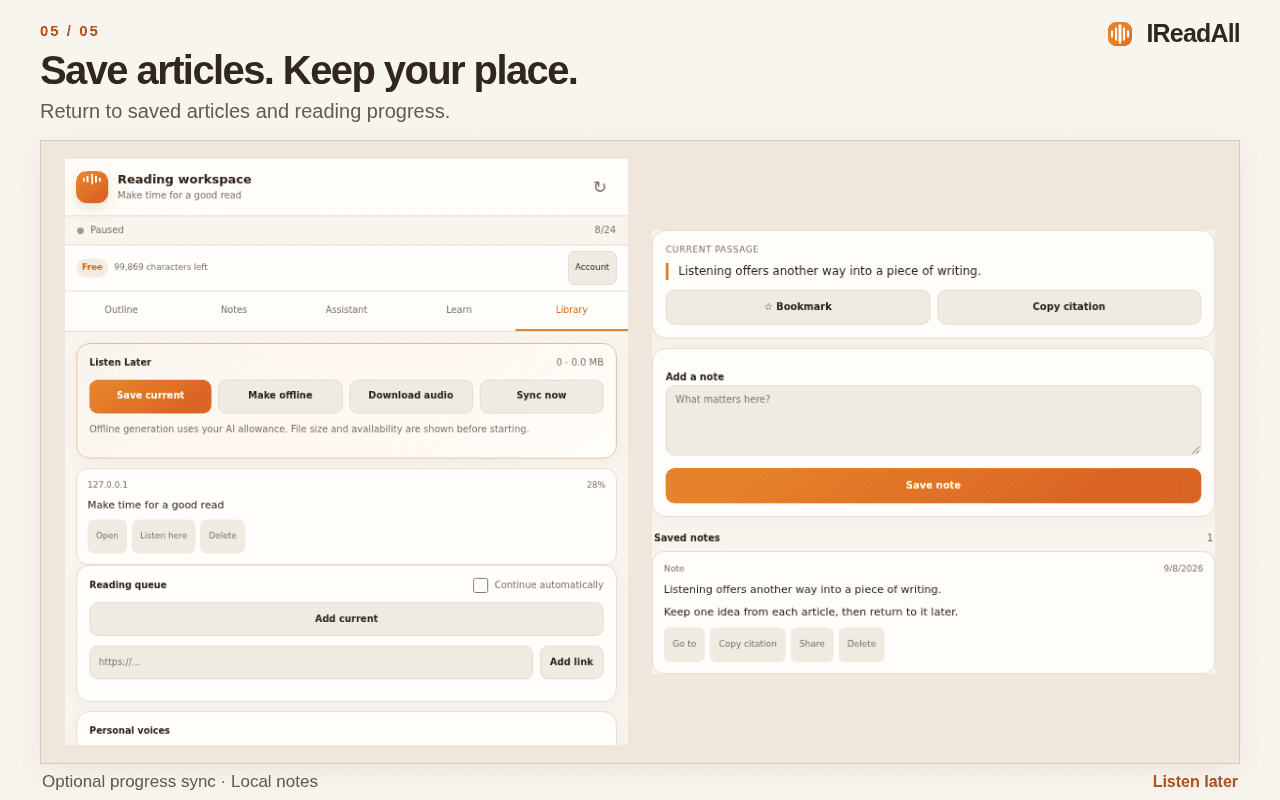
Save articles and reading progress in this browser. Connect an account and press Sync when you want to sync documents and progress.
Read later · Local notes · Optional sync
How to read a webpage aloud
Step 01
Review the listing and permissions, then add iReadAll to desktop Chrome 116 or later.
Step 02
Leave nothing selected for the article, or highlight a passage when that is all you need.
Step 03
Click the iReadAll toolbar icon to open Read Along. Use Play, or click a readable sentence in the article to start from that sentence.
Choose your reading workflow
Start with the current webpage, choose where to listen and see which features stay in your browser or use online services.
| Capability | What iReadAll does | Conditions and limits |
|---|---|---|
| Getting started | Free device voices without an account. | AI voices and AI Voice Design are optional and subject to feature availability and your remaining allowance. The extension shows the available trial or account allowance. Cloud MP3 export is a separate plan-enabled action. |
| In-page sentence playback | With the reader open, click a readable sentence to start there while keeping the original webpage visible. | Selection reading stays within the original selection. Links, forms, text selection and double-clicks keep their normal behavior. |
| Highlighting and speed | Word, sentence, paragraph and spotlight highlighting; 0.5–4× speed and an article outline. | Word-level highlighting with device voices depends on timing events from the speech engine. |
| Saving and sync | Save articles locally. Connect an account and press Sync to upload documents, chapters and reading progress. | Notes, vocabulary, queue state, Voice Design cache and offline audio remain local and are not uploaded by sync. |
| Page access | Open the reader to extract the current page locally. No continuous scanning of other tabs or browsing-history collection. | The reading interface is added on demand. Continuous queue playback can activate the next queued page after you enable it and grant domain access. |
| Supported pages | Article-style HTTP and HTTPS pages with accessible, extractable text in desktop Chrome 116+. | Editors such as Google Docs have limited accessible-text support. Use the dedicated PDF and EPUB readers for files; Chrome settings and store pages cannot run the reader. |
Device voices are provided by Chrome or your operating system. Device-voice playback does not send the text to iReadAll; offline availability depends on the selected voice.
Comparing options? Read our Chrome text-to-speech extension comparison guide for documented workflows and a practical article-reading test.
Keep the original page in view
Choose how much to hear while keeping the article and its context available to inspect.
Listen to readable documentation and HTML research articles while keeping code, charts and equations in view. Inspect those elements on the original page; not all visual or interactive content can be spoken.
Listen to long essays and web newsletters with accessible article text. Save an article in your local library, keep its reading progress and return when you have time to continue.
Try sentence or spotlight highlighting alongside audio, then adjust the pace to suit the passage. Choose the presentation that helps you follow the text, whether you prefer listening, looking or both.
Reading a file or pasted text? Choose a workspace for that source. Chrome's built-in PDF viewer uses a different workflow from an ordinary webpage.
Start with free device voices without an account. Try optional AI voices when available within your allowance. Connect My Reader and press Sync when you want to sync documents and reading progress.
Open Read Along on the article you want to hear, choose a readable sentence, and keep the original page in view. Use the guide below to compare Chrome reading workflows, or review the privacy notice for details about voices, page access and optional sync.
Frequently asked
Yes. You can read webpages aloud with free device voices without creating an account. Optional AI voices are subject to feature availability and your remaining allowance; free device listening does not mean unlimited AI speech.
Open the reader from the toolbar, context menu or keyboard shortcut, then click a readable sentence to listen from its beginning. Select a passage before opening to keep playback within that selection. Links, forms, text selection and double-clicks keep their normal behavior.
Use desktop Chrome 116 or later on article-style HTTP and HTTPS pages with accessible, extractable text. Google Docs support is limited to accessible text exposed by the page; if extraction fails, export a PDF and open it in the PDF Audio Reader. Chrome settings, Chrome Web Store pages and the built-in PDF viewer are not ordinary article pages. Use the dedicated PDF Audio Reader or EPUB Audio Reader for document files and DRM-free books.
Device voices are provided by Chrome or your operating system. Device-voice playback does not send the text to iReadAll; offline availability depends on the selected voice. Generating AI speech requires a connection. You can explicitly cache generated audio segments in this browser for later offline listening; this is separate from cloud MP3 export.
AI voices and AI Voice Design are optional and subject to feature availability and your remaining allowance. The extension shows the available trial or account allowance. Cloud MP3 export is a separate plan-enabled action.
The extension extracts readable text locally after you open the reader from the toolbar, context menu or shortcut. It adds the reading interface on demand and does not continuously scan other tabs or collect browsing history. If you enable continuous queue playback and grant access to a queue domain, it can open the reader on the next queued page automatically. After you complete the privacy step and select the AI engine, AI Voice Design can send a representative text sample to prepare narrator choices, even before you press Play. AI playback sends the sentences needed for speech. Assistant, translation, feedback samples, sync and cloud export send content through their corresponding actions.
Saving first keeps articles and progress in this browser. Connect an account and press Sync to upload documents, chapters and reading progress. Notes, vocabulary, queue state, Voice Design cache and offline audio remain local and are not uploaded by sync.