On this page
A scanned PDF often stores a photograph of each page. Ordinary Find cannot search words that exist only as pixels. Optical character recognition, or OCR, produces text from those images. You can then search that text and return to the original page to confirm what it says.
Check whether OCR is needed
Copy a sentence from a representative page. If it copies accurately, use ordinary PDF search first. If it produces no text, or unrelated characters, recognition may help. Repeat the check in a scanned appendix: a document can mix native text pages with images, and one successful page does not describe the rest.
W3C's scanned-PDF technique describes supplying actual text through OCR and checking the result. Searchability is one useful outcome; a fully accessible document also requires appropriate structure and other checks.
Recognize and search a page on your device
- Open Search Scanned PDFs and choose your file.
- Open text recognition, select the current page or a small page range, and choose English or Chinese + English for local recognition.
- Start on-device recognition. The first run downloads the recognition tools; the document images are processed locally.
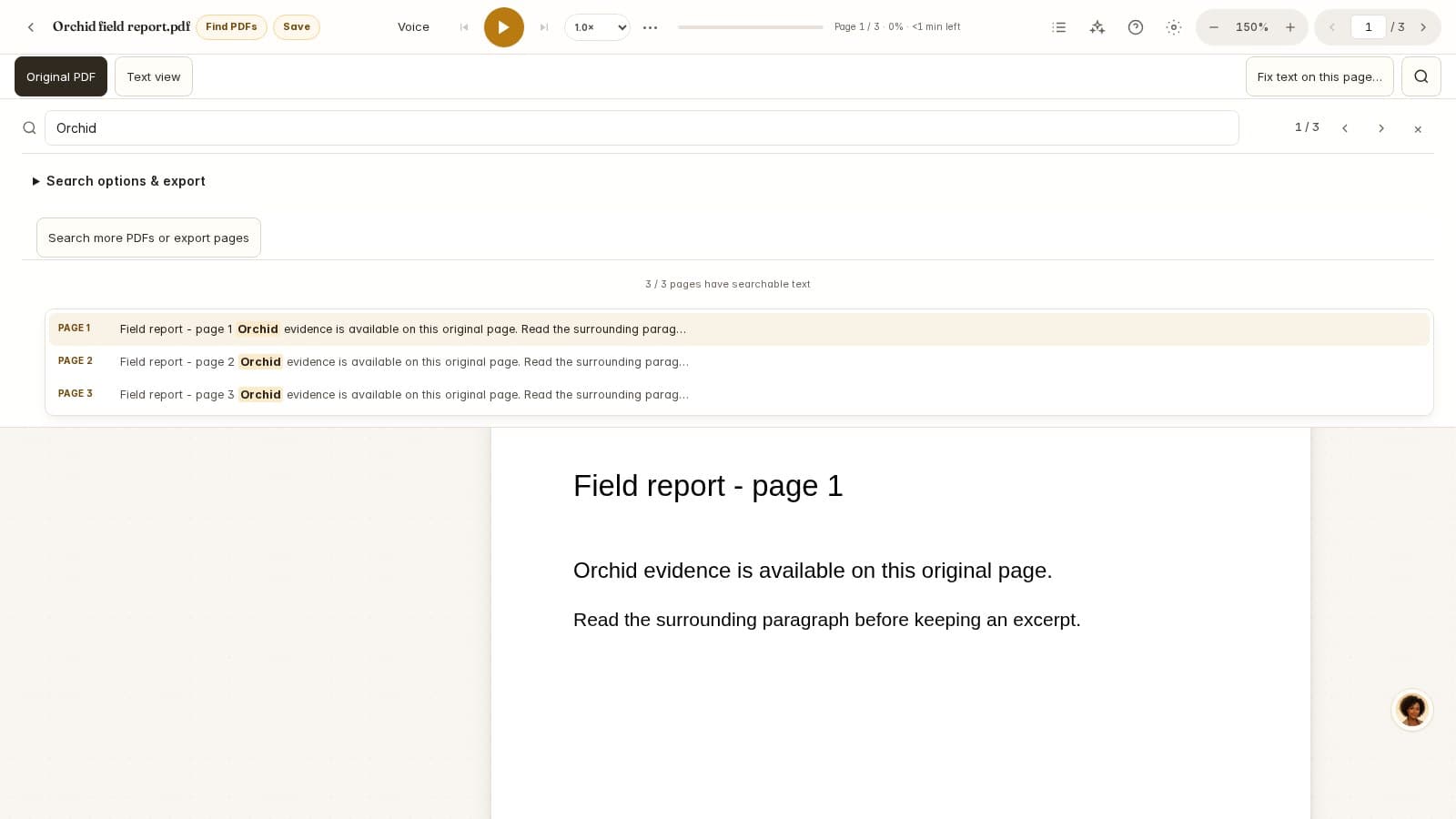
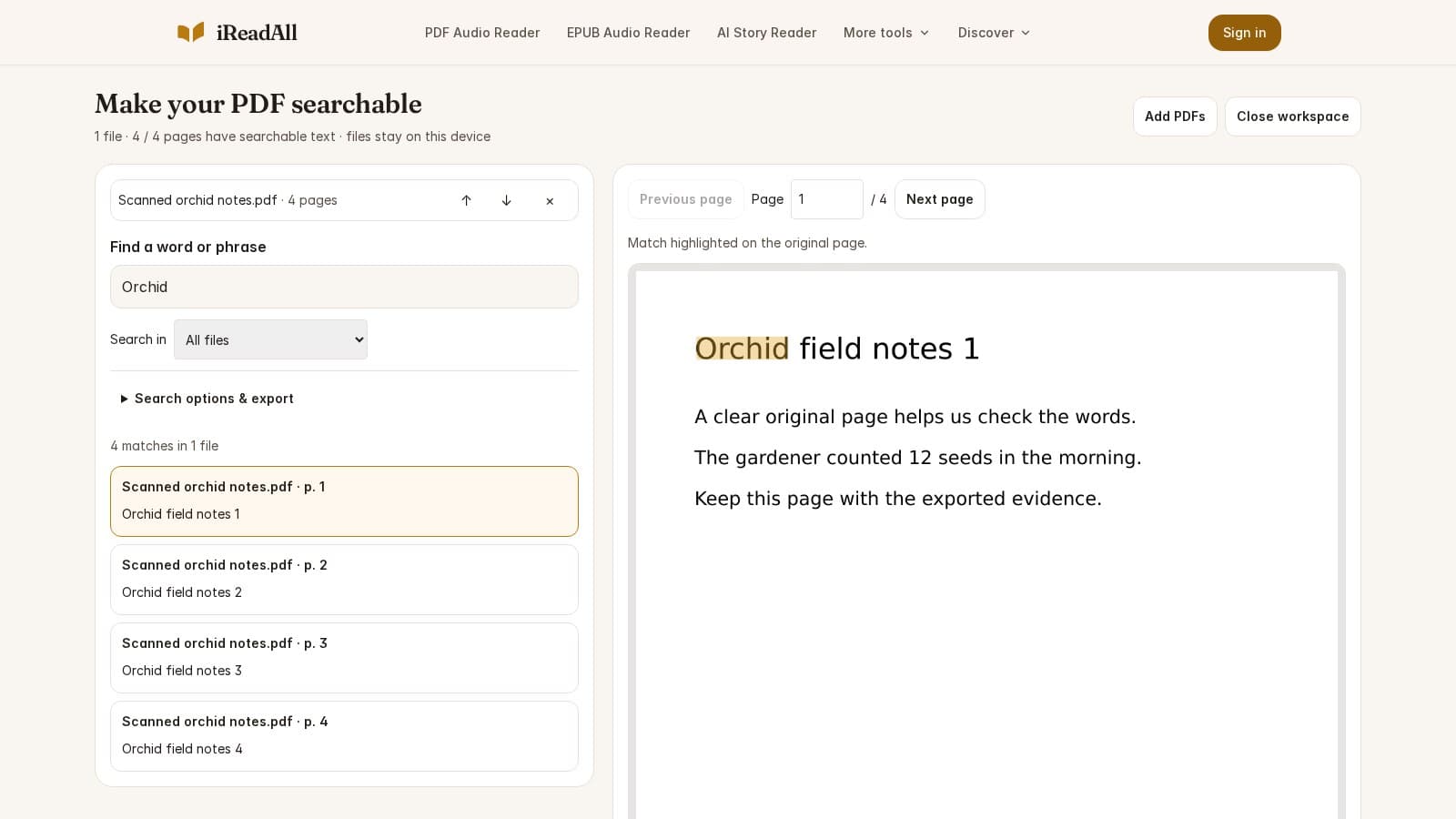
- Search a distinctive word after the page finishes, then open the match on the original image.
- When the sample is useful, recognize the remaining pages that need text. You can stop; completed page results remain available in this browser's local cache.
Keep the tab open during processing. Large page images and many pages take more memory and time, especially on a phone. When you only need one chapter, process its range first instead of waiting for the whole book.
Check accuracy with three concrete targets
Swipe horizontally to compare all columns →
| Target | What to compare | Why it helps |
|---|---|---|
| An uncommon name | Every letter against the scan | A familiar-looking substitute can still be wrong. |
| A number and its unit | Digits, decimal point, sign and unit | A single character can change the meaning. |
| A full sentence | Word order, punctuation and negation | Correct individual words can be assembled incorrectly. |
This is a sample check, not a validation of every page. For a quotation, verify the exact passage you intend to use. A failed search after OCR may mean the recognizer missed a word rather than that the source omitted it.
Compare a name, number and sentence with the original scan. Recognition can finish with mistakes.
Check which file pages have usable text. One successful page does not establish that an entire document was searched.
Improve the input when recognition struggles
Inspect faint characters, tilted lines, dark borders and small print. Tesseract's image-quality guidance explains why noise and skew can reduce useful recognition. If you can obtain a clearer, straighter scan, compare the same sample page again. Enlarging an unreadable photograph cannot recreate detail that was never captured.
Download a searchable copy
Use OCR PDF when you need a portable result. Finish the image-only pages and choose Download searchable PDF. The export keeps the original page appearance and adds invisible recognized text to those pages. It accepts unencrypted files and preserves existing native text pages.
Reopen the downloaded file in another PDF viewer, search your three check targets, and inspect the selected area. Replacing an existing damaged text layer is not supported by this export. If that is your problem, keep a checked text export or repair the source layer before producing the final document.
If you use Acrobat for that second check, its search guide explains Find and the available search filters. Clear restrictions before checking the exported words.
How this guide was researched
Evidence checked Nov 4, 2026. Product features can change; dated observations describe the version examined.
Published by iReadAll. AI tools assist research and editing; the team is responsible for verification. Read our editorial policy.
Sources & references
- Adobe: Searching in PDFsAdobe · Checked 2026-11-04
- W3C PDF7: Actual text in scanned PDFsW3C · Checked 2026-11-04
- Tesseract: Improving output qualityTesseract · Checked 2026-11-04
Cite this guide
iReadAll Product & Editorial Team. “How to Search a Scanned PDF with OCR.” iReadAll, Nov 4, 2026. https://ireadall.ai/blog/how-to-search-scanned-pdf