
Prepare a PDF for Submission: Order, Readability and File Size
Prepare reports or application attachments with a practical checklist for page order, images, forms, numbering, privacy and file-size limits.
By iReadAll Product Team · Updated
Start with your PDFRead the destination's requirements first
Check the required file format, maximum size, page order, signing method and whether several attachments are accepted. A school, employer or publication can require different layouts; use its current instructions rather than a generic online checklist as the final authority.
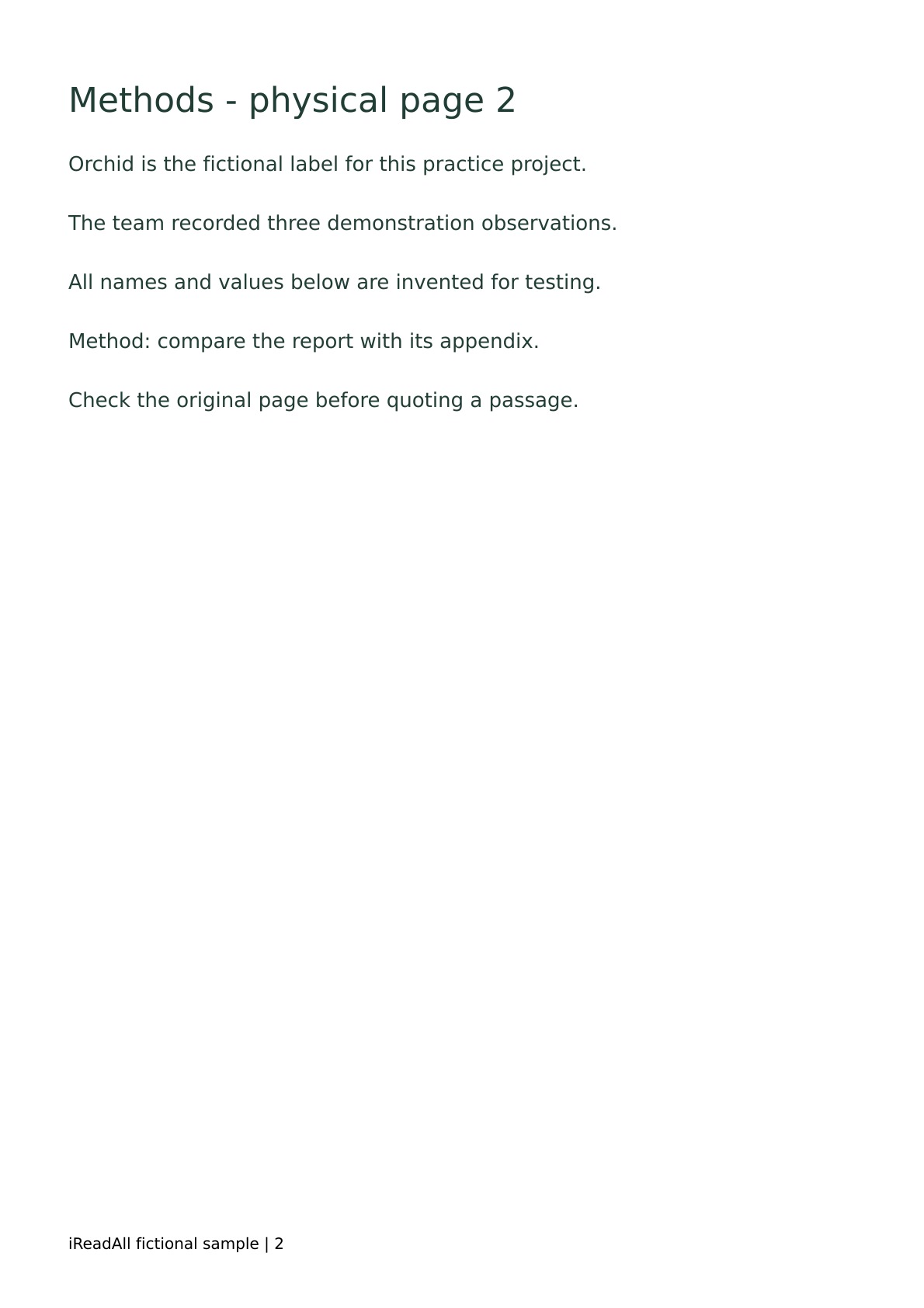
Keep an original folder and work on copies. The demonstration report and appendix let you practice assembling a five-page packet. The photo sample can stand in for a photographed page that needs conversion before it joins the packet.
Convert source formats into readable pages
Use Images to PDF for JPG, PNG or WebP pages. If a photo is angled, review it in Scan to PDF first. Use Word, Excel or PowerPoint conversion for supported DOCX, XLSX or PPTX sources, reviewing the online upload and allowance notice before starting.
Check each converted file before combining. Look for clipped columns, shifted page breaks, substituted fonts and unreadable small print. Correct a source document where possible rather than trying to hide a layout problem with later cropping.
Assemble the final sequence
Merge the required PDFs in order, then use page organization to remove accidental blanks or rotate sideways pages. For the report and appendix samples, expect five pages with the report first. Inspect the transition between the two documents.
Add visible page numbers after the sequence is stable if the destination requires them. Check that they do not overlap footnotes or existing labels. Page assembly does not carry over every document-level form, attachment, bookmark or digital signature feature.
Review forms and information you intend to share
For forms, verify both field values and their visible appearance in the exported copy. A drawn signature appearance is not a certificate signature; use the method the recipient requires. Retain original signed documents when their signature record matters.
Check for information that should not be included. Cropping hides part of a page but does not permanently remove underlying content. Redaction rebuilds pages as images and removes original text and interactive features, so review its tradeoffs and the complete output.
Check the final size and downloaded file
Measure the assembled PDF against the destination's actual size limit. If needed, choose online compression and compare small print after processing. A target size is not guaranteed; removing unnecessary pages can be preferable to reducing all image quality.
Download the final file, reopen it in another viewer and check the cover, page count, important values and last page. Use a clear filename, submit through the intended channel and keep both the final copy and the originals. A successful local export is separate from confirmation that the destination accepted the submission.
Practice with the sample files
These fictional demonstration documents were created by iReadAll for this workflow. They contain no customer data. Start with a copy, perform the steps above and inspect the actual output.
Check the result
- Current destination requirements checked
- Pages complete, ordered, upright and readable
- Forms and required signing method verified
- Final downloaded PDF opens and meets the destination's size limit
Local tools keep document content on your device. Online tools require an account and an estimate before processing. See data handling and PDF processing allowances.
Continue with the submission checklist, the PDF research workflow, or browse all PDF tools.