On this page
Prepare readable images first
A PDF made from images is only as readable as its source pictures. Choose JPG, PNG or WebP files with the full page visible and text in focus. If your phone saves HEIC, export a compatible format first; changing only a filename extension does not convert the image.
For an angled photograph, use Scan to PDF to review the four corners and perspective before assembly. Direct Images to PDF conversion places the image on a page but does not automatically repair glare, blur or a missing edge.
Set the image order and paper layout
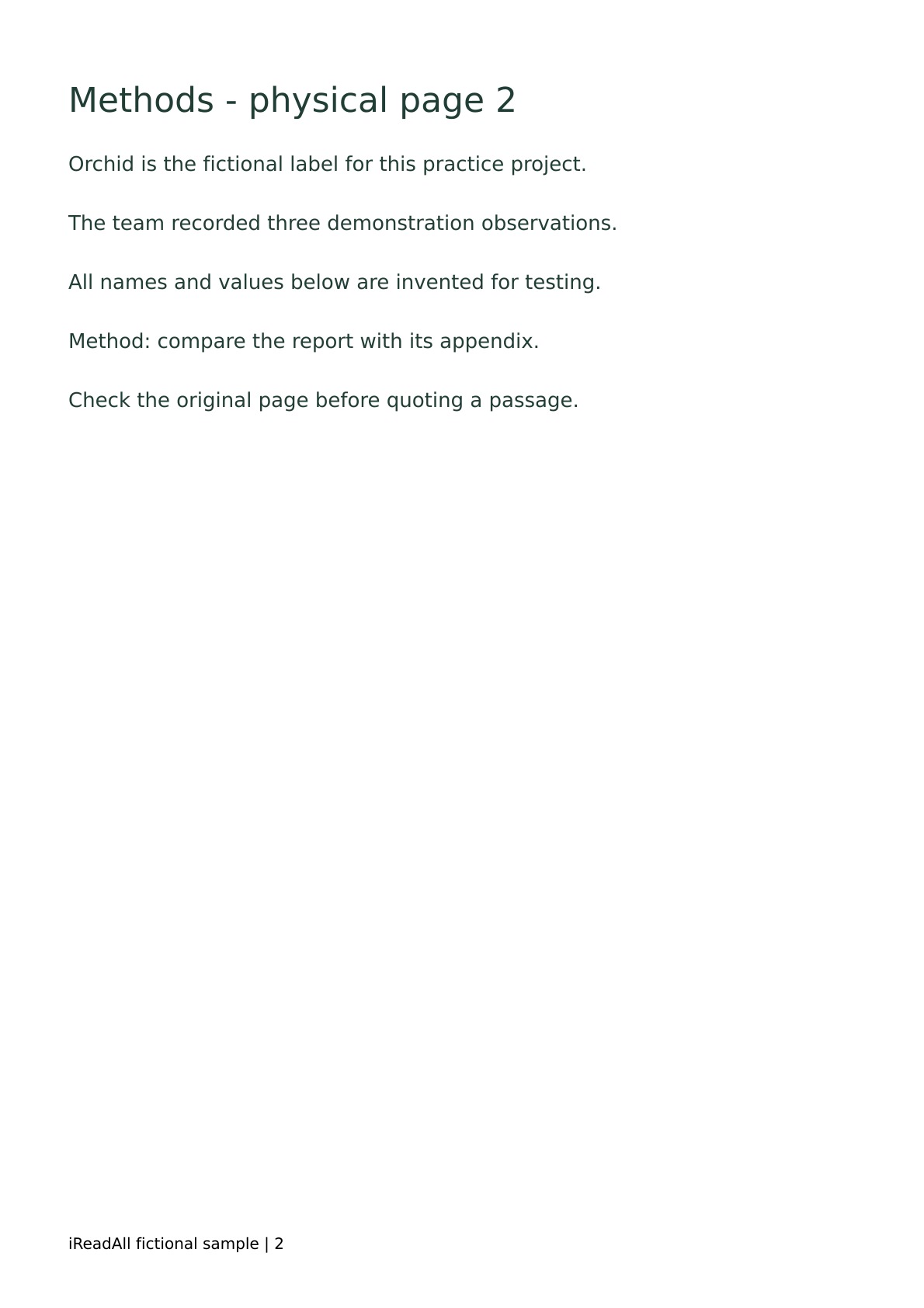
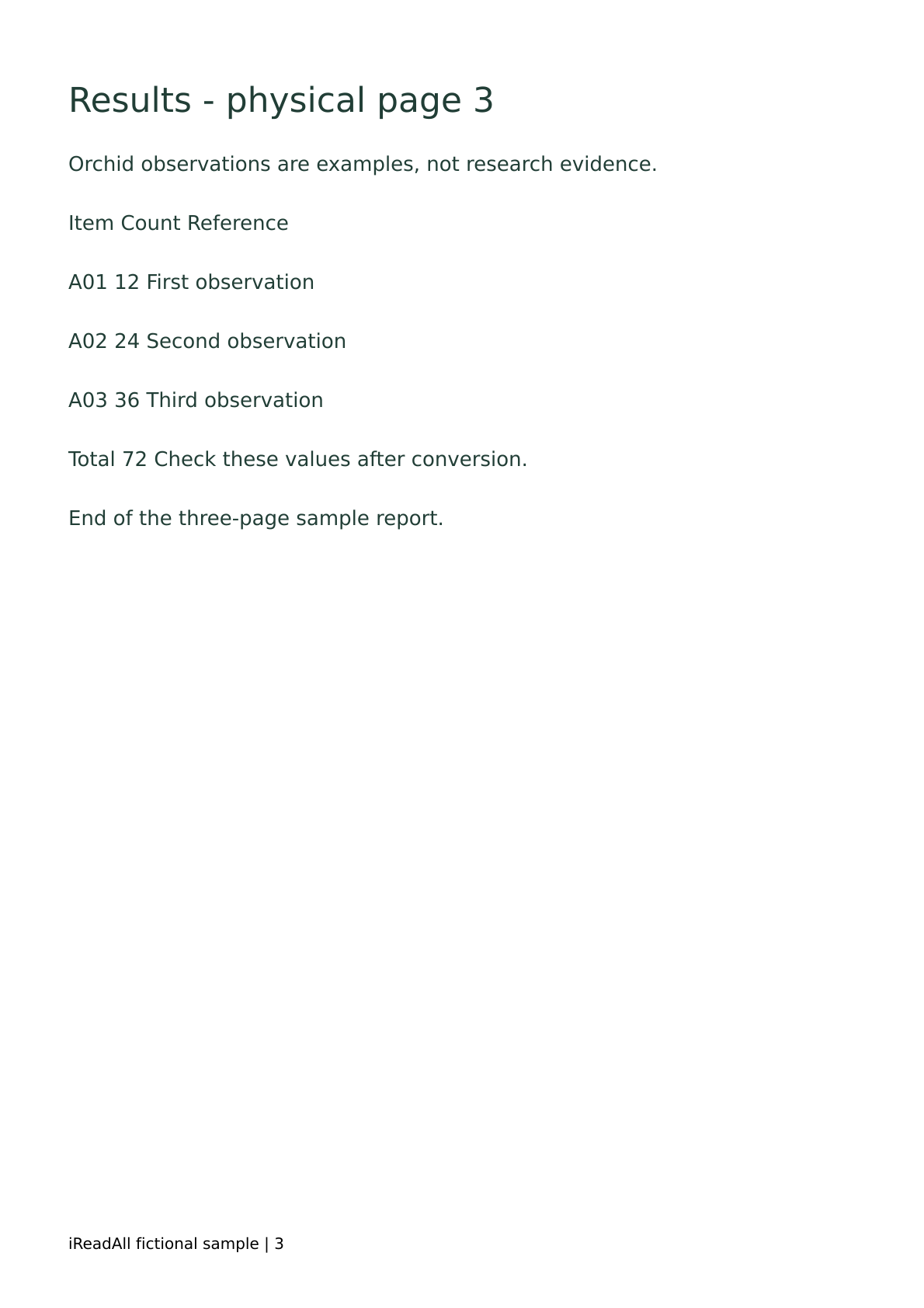
Open Images to PDF and choose the two sample page images. Put the methods page before the results page. Choose A4 or Letter if the recipient expects a standard page size, or an image-sized page when preserving the image dimensions is more useful.
Review orientation and margins. A portrait photo on a landscape sheet may leave a large blank area. Narrow margins can help a large document image fit, but check that all edge text remains visible.
Convert and inspect the output
Start conversion and download the generated PDF. The two sample images should produce two pages. Inspect the first and last lines on each page, then zoom to a comfortable reading size and check the table values.
If the pages are in the wrong order, use Organize PDF to move them in the resulting document. Keep the original pictures so you can rebuild with different settings without repeatedly compressing them.
- 01Orientation
Text reads upright.
- 02Fit
The whole source image sits within the page.
- 03Detail
Small numbers remain readable at normal size.
Add OCR when you need searchable words
Image conversion alone does not make photographed text selectable. Open the resulting document in OCR PDF, choose the language and recognize the needed pages. Check the text against the original image before exporting a searchable copy.
English and Chinese with English are supported by the on-device OCR workflow. Recognition quality depends on the source. Numbers, names, small print and unusual layouts deserve special attention, even when the text looks convincing.
Balance file size and readability
Large photographs can produce a large PDF. Check the file size against the actual destination's limit. If you need online compression, review its upload and allowance details before sending the document for processing.
Compare small print after compression. A file that meets a size limit but cannot be read is not ready for submission. Reducing the number of unnecessary pages may be a better choice than making every page less clear.
Practice with the sample files
These fictional demonstration documents were created by iReadAll for this workflow. They contain no customer data. Start with a copy, perform the steps above and inspect the actual output.
Check the result
- Two sample images produce two pages in the expected order
- No clipped corners or stretched page content
- Small print and table values remain readable
- OCR applied separately if selectable text is required
Local tools keep document content on your device. Online tools require an account and an estimate before processing. See data handling and PDF processing allowances.
Continue with the submission checklist, the PDF research workflow, or browse all PDF tools.
Samples & worksheets
Original fictional demonstration material for the workflow and result checklist.
Original fictional demonstration material for the workflow and result checklist.
How this guide was researched
The workflow was checked against iReadAll's current tool controls, processing limits and data-handling rules. Downloads are original fictional documents with an explicit result checklist; diagrams are explanatory illustrations. They are not a comparative accuracy or speed benchmark.
Evidence checked Nov 17, 2026. Product features can change; dated observations describe the version examined.
Published by iReadAll. AI tools assist research and editing; the team is responsible for verification. Read our editorial policy.
Sources & references
- iReadAll Images to PDF: supported inputs and processing limitsiReadAll · Checked 2026-11-17
- iReadAll PDF data handling and retentioniReadAll · Checked 2026-11-17
- iReadAll PDF processing allowancesiReadAll · Checked 2026-11-17
Cite this guide
iReadAll Product & Editorial Team. “How to Convert JPG and PNG Images to a PDF.” iReadAll, Nov 17, 2026. https://ireadall.ai/blog/convert-jpg-png-to-pdf