On this page
Finding matches and creating the page packet run on your device. You can download the result without signing in.
Practice with the sample files
The reference ZIP is an export of these two fictional PDFs. The supplied source manifest lets you check which pages came from each file.
Choose a page-sized result
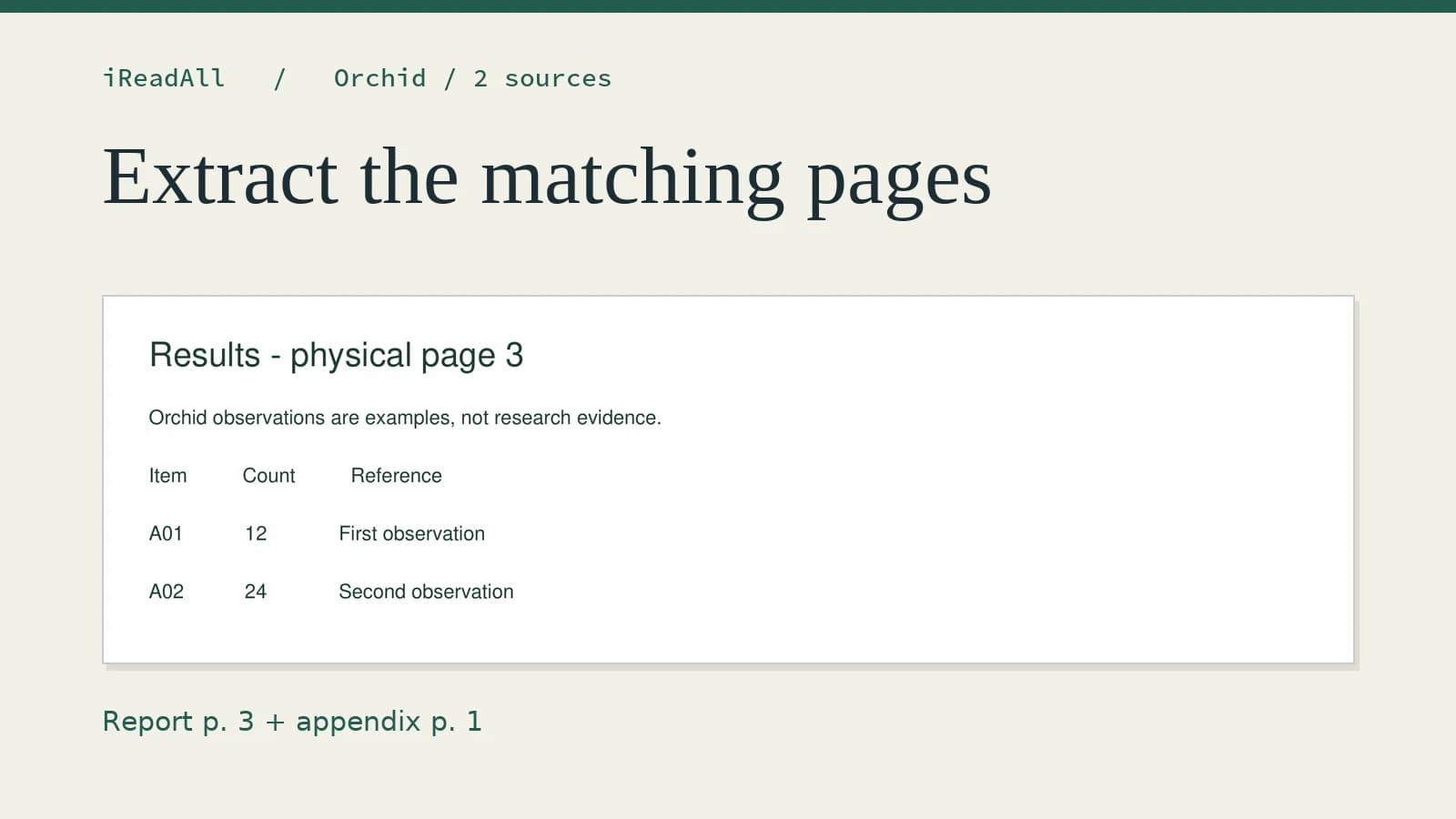
Search both sample PDFs for Orchid. The three-page field report contains the word on every page. The appendix contains it on page 1. The review checklist on appendix page 2 has no match. Your finished packet should therefore contain four pages across two source documents.
Check coverage before selecting pages
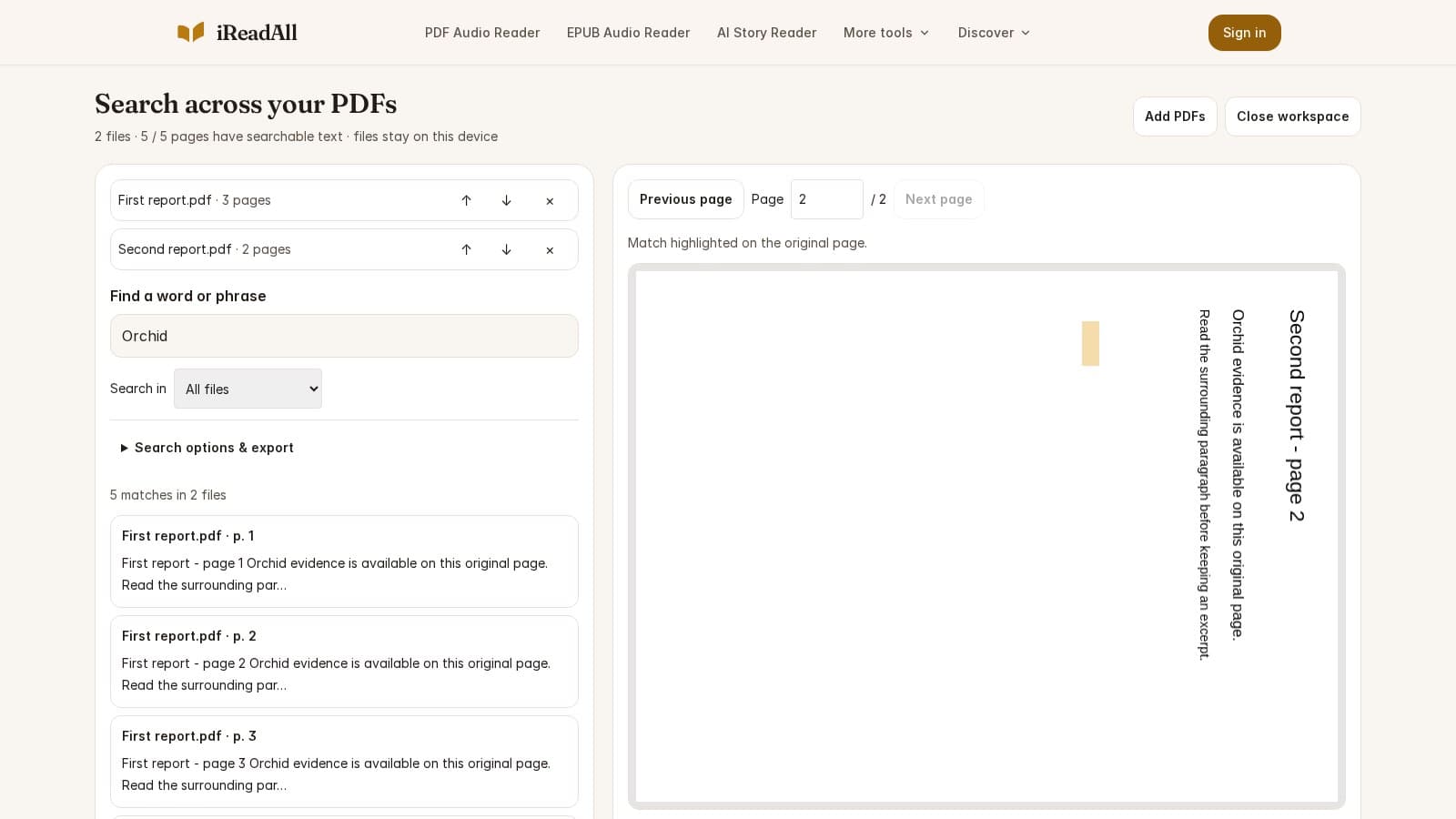
Open Search Multiple PDFs, choose both files and enter Orchid. Wait for indexing to finish. Open a hit in each document and inspect its highlight. An image-only page can look readable while providing no searchable text. Run OCR on any required uncovered pages and repeat the search.
Keep the files separate in the export
Open Organize pages & export, then expand Choose matching pages and output. Review the selected pages and choose Create one PDF per source in a ZIP. Choose Extract matching pages and save the archive. Multiple hits on one page need only one copy of that page in the result.
Read the manifest beside the PDFs
Extract the archive. Open sources.json to identify each input and the original physical page numbers. The report entry should list 1, 2 and 3. The appendix entry should list 1. Open both PDFs and compare their first headings with the originals before passing the packet on.
- 01Report
Pages 1, 2 and 3 contain Orchid.
- 02Appendix
Only page 1 contains Orchid. The checklist is on page 2.
Handle an empty or partial result
Check the active search term and excluded pages if a needed page is absent. Look at the uncovered-page list before accepting a partial export. To preserve handwritten notes, charts or surrounding pages that have no matching text, include those pages in a separate manual selection.
Check the result
- Report pages 1, 2 and 3 are present
- Appendix page 1 is present and its review checklist is omitted
- The two exported PDFs agree with sources.json
Read about PDF data handling and processing allowances. Find other workflows in PDF Tools.
Samples & worksheets
The reference ZIP is an export of these two fictional PDFs. The supplied source manifest lets you check which pages came from each file.
The reference ZIP is an export of these two fictional PDFs. The supplied source manifest lets you check which pages came from each file.
The reference ZIP is an export of these two fictional PDFs. The supplied source manifest lets you check which pages came from each file.
Questions & answers
How do I extract only PDF pages containing a word across several files?+
Search the files together, review the matching pages and export one PDF per source in a ZIP.
Will a page appear twice if the search word appears twice?+
The page selection is deduplicated within each source. Inspect the manifest to see the original page numbers.
How this guide was researched
The reference ZIP is an export of these two fictional PDFs. The supplied source manifest lets you check which pages came from each file. Finding matches and creating the page packet run on your device. You can download the result without signing in.
Evidence checked Nov 26, 2026. Product features can change; dated observations describe the version examined.
Published by iReadAll. AI tools assist research and editing; the team is responsible for verification. Read our editorial policy.
Sources & references
- iReadAll Search multiple PDFs inputs and processing limitsiReadAll · Checked 2026-11-26
- PDF data handling and retentioniReadAll · Checked 2026-11-26
- PDF processing allowancesiReadAll · Checked 2026-11-26
Cite this guide
iReadAll Product & Editorial Team. “How to Extract Matching Pages From Multiple PDFs.” iReadAll, Nov 26, 2026. https://ireadall.ai/blog/extract-matching-pages-from-multiple-pdfs